1Before you start
Bext for WordPress is for sites served by bext, installed on the same machine (Auto mode) or on a remote server (Cloud mode). On hosting without bext, the plugin installs without errors but stays inactive: it changes nothing as long as it does not detect bext.
| Item | Required |
|---|---|
| WordPress | 5.8 or newer, single site or multisite |
| PHP | 7.4 or newer (tested up to 8.3) |
| Server | bext on the same machine, or a remote bext server with a purge token (Cloud mode) |
| Access | An administrator account; for the system cron, SSH or “cron jobs” access |
No licence key: the plugin is free and open source.
2Download the archive
Download bext-wp.zip, the latest version published on GitHub. The archive contains a bext-wp/ folder ready to install. Do not unzip it.
3Install and activate
- Open PluginsAdd New Plugin then Upload Plugin.
- Choose
bext-wp.zipand click Install Now.
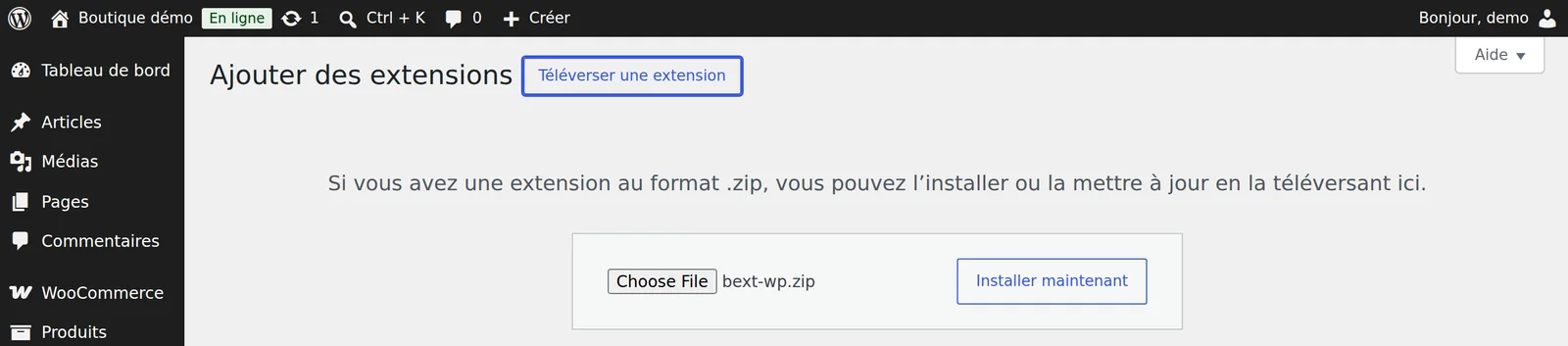
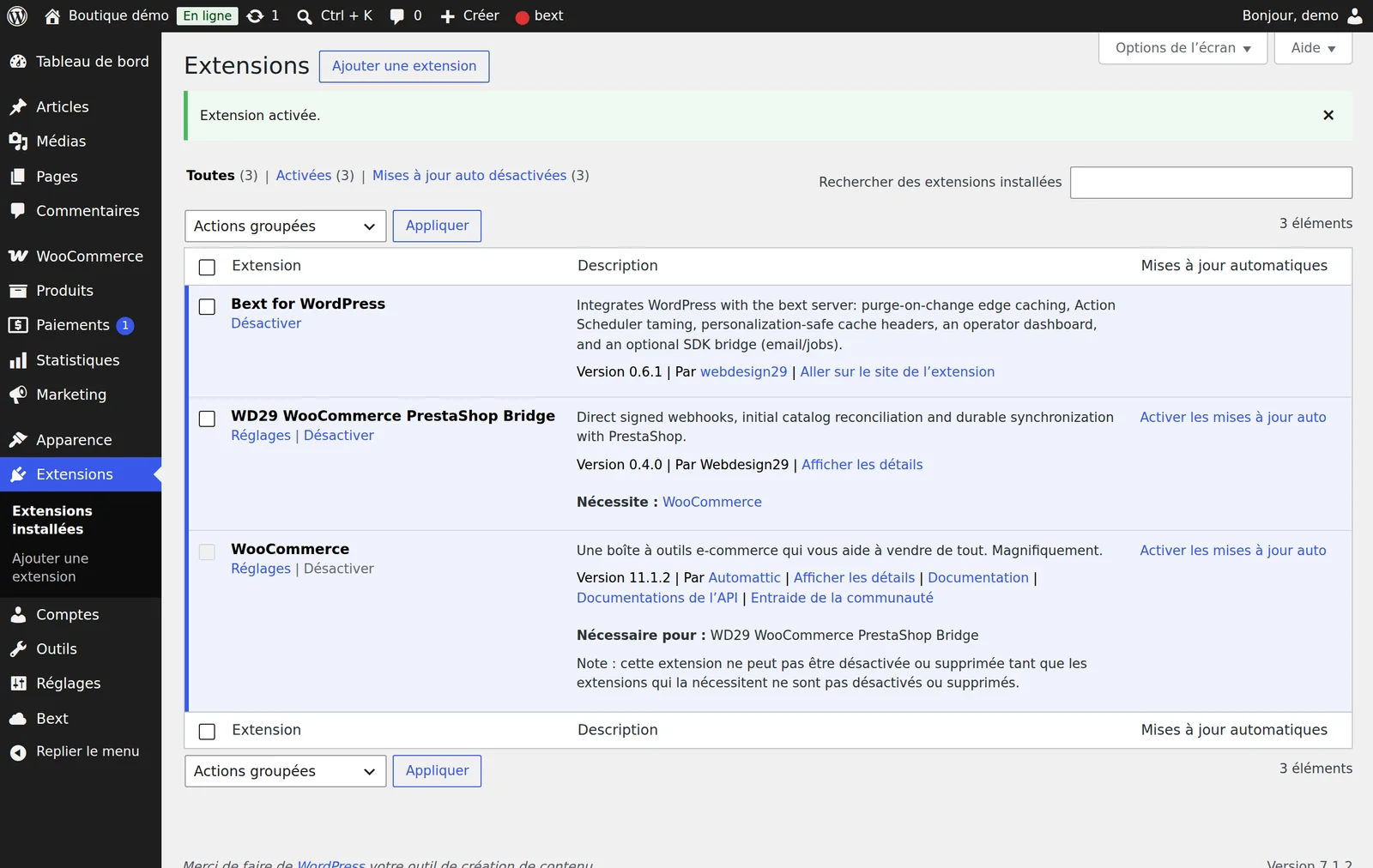
- Click Activate Plugin. A Bext menu appears in the sidebar, and a “bext” badge in the admin bar.
With WP-CLI: wp plugin install https://github.com/webdesign29/bext-wp/releases/latest/download/bext-wp.zip --activate
4Check detection
Open Bext. The Integration block shows whether bext was detected, the mode, the canonical host and the purge endpoint used.
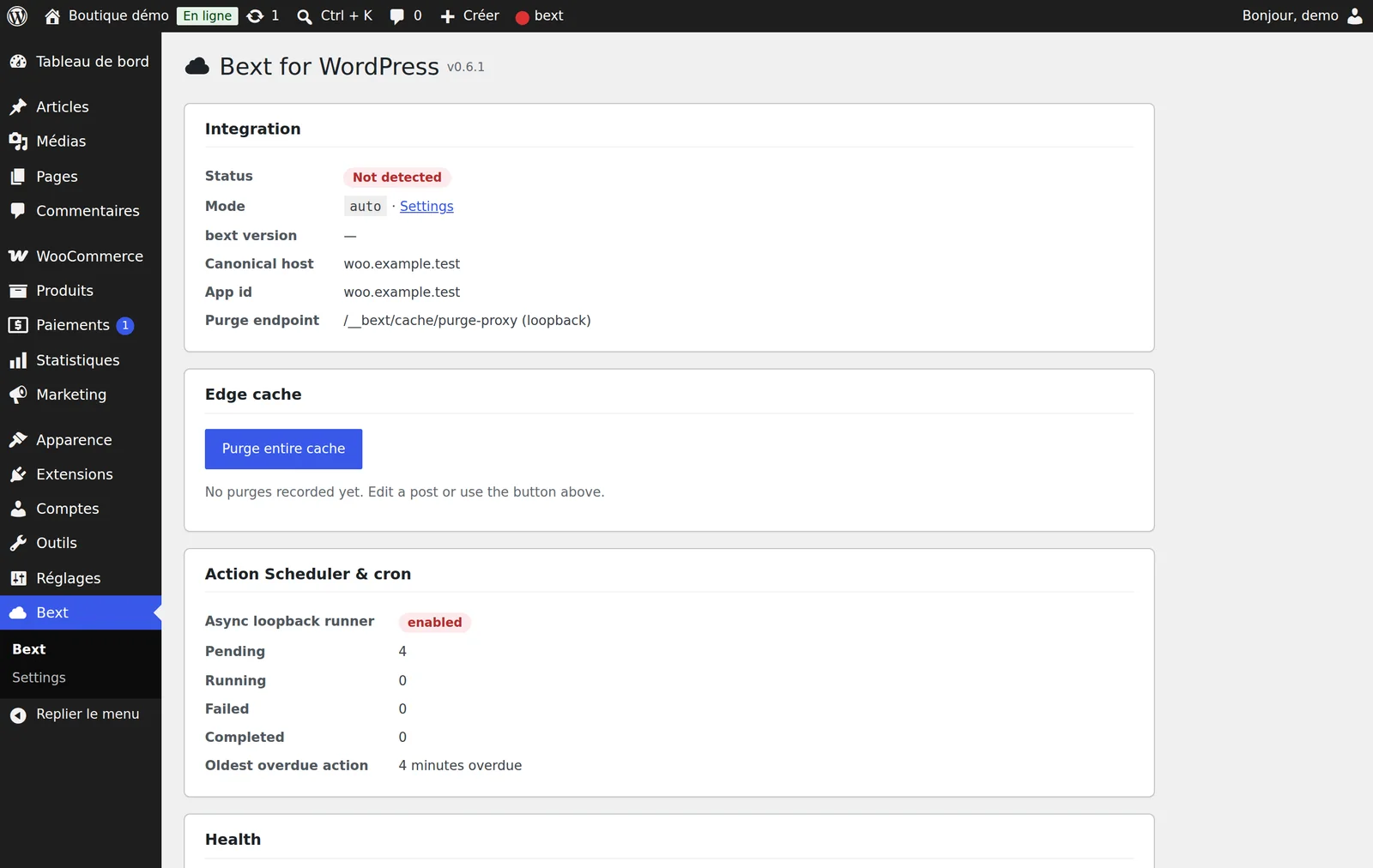
In Auto mode, the plugin recognises bext through the BEXT_SERVER parameter passed by the server. Pages already cached do not go through PHP: visit an uncached page (the admin is enough) then reload the dashboard. The status changes to Served by bext, the admin bar badge turns green, and detection is remembered.
The site is probably not served by bext on this machine. If bext runs elsewhere, use Cloud mode (next step). If you know bext is in front of the site but the parameter does not arrive, define( 'BEXT_WP_ASSUME_BEHIND_BEXT', true ); in wp-config.php forces detection.
5Choose the mode
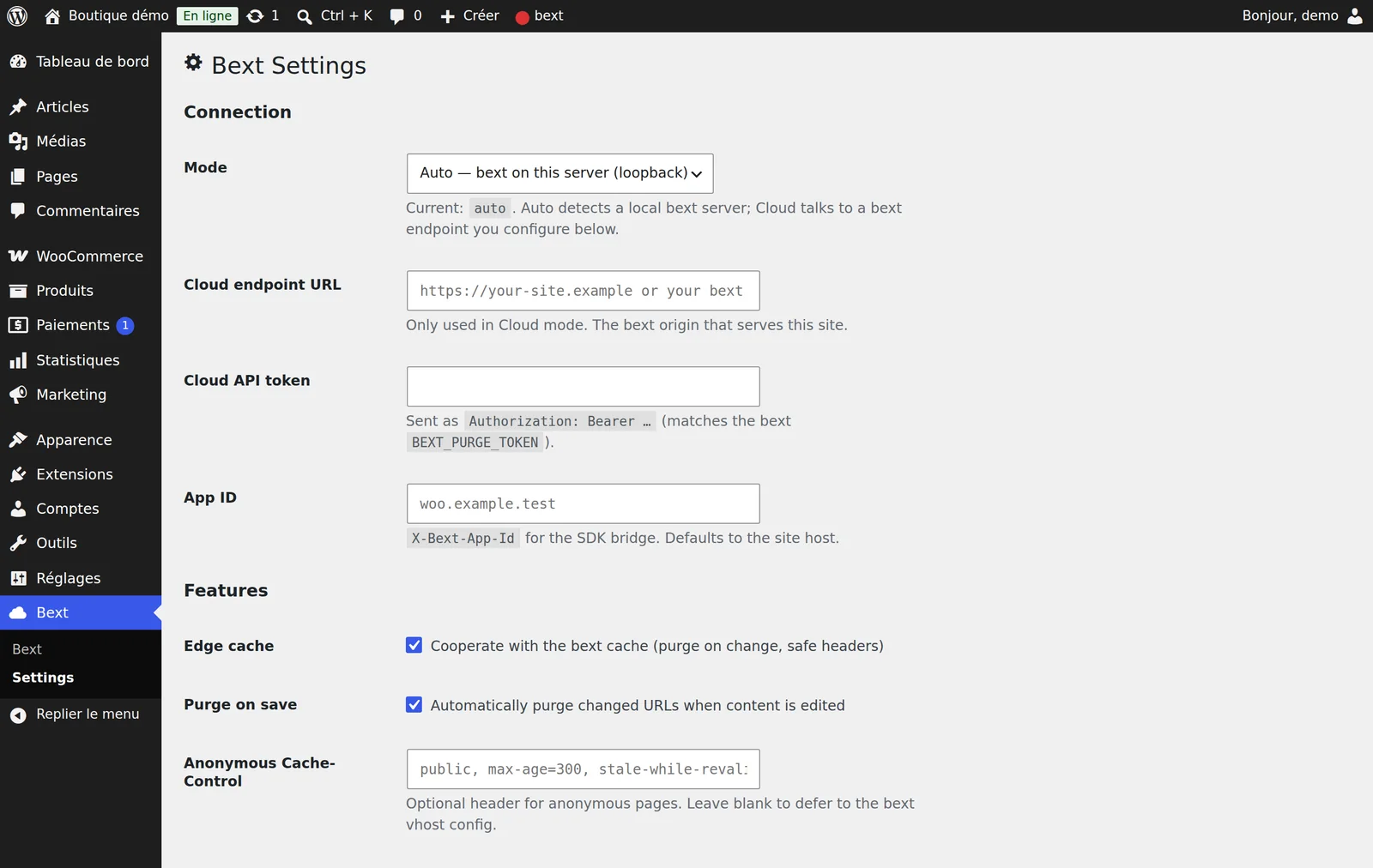
Open BextSettings.
| Mode | When to use it | What to fill in |
|---|---|---|
| Auto | bext serves WordPress on the same machine | Nothing: exchanges go through 127.0.0.1, with no key |
| Cloud | WordPress is behind a remote bext server | Cloud endpoint URL (the site's bext origin, over HTTPS) and Cloud API token (the value of BEXT_PURGE_TOKEN on the bext server) |
| Off | Disable the integration without uninstalling | Nothing |
In Cloud mode, save then click Test connection: the plugin calls /__bext/health on the given address and shows the result.
The modules
- Edge cache and Purge on save: keep them ticked, they are the heart of the plugin.
- Anonymous Cache-Control: leave empty to keep the cache policy set on the server.
- Action Scheduler taming: see the next step.
- Email via bext and Jobs via bext: optional. If they fail, sending falls back to WordPress.
- Performance (since 0.6): safe trims enabled by default (emoji script removed, head cleaned up, Heartbeat slowed on the front end, Contact Form 7 loaded only where a form is present). Heavier trims stay off. Each one is set with a
bext/perf/<name>filter, which has no equivalent on the settings page yet.
Lock the configuration
For an agency or a fleet, constants in wp-config.php take precedence over the settings page:
6Hand cron to the system
Once bext is detected, the plugin turns off Action Scheduler's “loopback” runner (used by WooCommerce and other plugins), which ties up PHP for 5 to 21 seconds per call on some sites. The queue must then be run by a system cron:
The dashboard then shows disabled (system cron) for the runner, and the Health section confirms WP-cron handled by system cron. Without cron access, untick Action Scheduler taming.
7Check a purge
- Edit and update a post or a product.
- In Bext, the Edge cache section logs the purge: the number of URLs and a sample (the post, the home page, archives, feeds, the sitemap).
- Reload the post in a private window: the new version shows, then the following visits are served from the cache.
The Purge entire cache button clears the site's whole cache if needed. From the command line:
8Install on a fleet (must-use)
On a server hosting several WordPress sites served by bext, install the plugin as must-use with the repository's script. It is copied into each site (open_basedir compatible) and cannot be deactivated by mistake from the admin:
On multisite, the network settings (Network AdminBext) set defaults, optionally enforced on every site, and a dashboard lets you purge one site or the whole network.
9Updates
Installed as a regular plugin, Bext for WordPress checks for new versions with the Inklura update server every 12 hours. They appear in Plugins like any plugin, with one-click update. Must-use installs are updated by running deploy-fleet.sh again.
10Uninstalling
Deactivate then delete the plugin from Plugins: deletion removes all its settings (bext_wp_*), including on multisite. For a must-use install: sudo bin/deploy-fleet.sh --remove --site=example.com (or --all). If you had added DISABLE_WP_CRON, keep your system cron or remove the constant.