Both extensions display their settings in French. This guide quotes each label as it appears on screen, followed by its meaning in English, for example “Enregistrer la clé” (save key). WordPress and PrestaShop menus use the names of an English-language admin.
1Before you start
Inklura Sync is made of two extensions that talk to each other directly: one is installed in WordPress (WooCommerce), the other in PrestaShop. No shop data goes through our servers.
| Item | Required |
|---|---|
| WordPress | 6.5 or newer, WooCommerce enabled, PHP 7.4 or newer |
| PrestaShop | 8.2.0 to 8.x (single shop; multistore needs adapting) |
| HTTPS | Valid certificate on both shops, standard port 443, no HTTP password in front of the site; outgoing HTTPS allowed to plugins.inklura.fr |
| PHP | curl and sodium extensions (bundled with PHP), and zip on PrestaShop for one-click updates |
| Access | An administrator account on each shop and SSH or “cron jobs” access at each host |
| Backup | A recent, restorable backup of both databases and files |
| Licence | An active licence (Essentiel, Pro or Agence) and your 1clic account |
If you can, run a first trial on copies of your two shops. The domains localhost, *.test, *.local, *.localhost and *.example are never counted against your licence. In production, audit mode (step 6) lets you check everything before a single write.
The guided setup (1 hour remote, €600 excl. VAT, one-time payment) covers steps 3 to 10 with you, whatever your plan.
Also read the special cases: KerAwen, bundles, multistore, eco-tax or complex ACF fields are checked before installation.
2Get the key and the archives
Sign in to your customer area with the account used for the purchase. For each active licence, you will find:
- the licence key in the format
WD29-XXXX-XXXX-XXXX-XXXX, with a “Copy key” button; - two archives:
woocommerce-prestashop-bridge-0.4.0.zipfor WordPress andwd29woobridge-0.4.0.zipfor PrestaShop, each with its SHA-256 checksum.
Download links stay valid for 15 minutes: reload the page to get new ones. Do not unzip or rename the archives.
Check the checksum (recommended)
Compare the start of the checksum computed on your computer with the one shown in the customer area:
If the checksums differ, delete the file and download it again.
3Install on WooCommerce
- In the WordPress admin, open PluginsAdd New Plugin and click Upload Plugin at the top of the page.
- Choose
woocommerce-prestashop-bridge-0.4.0.zipand click Install Now.
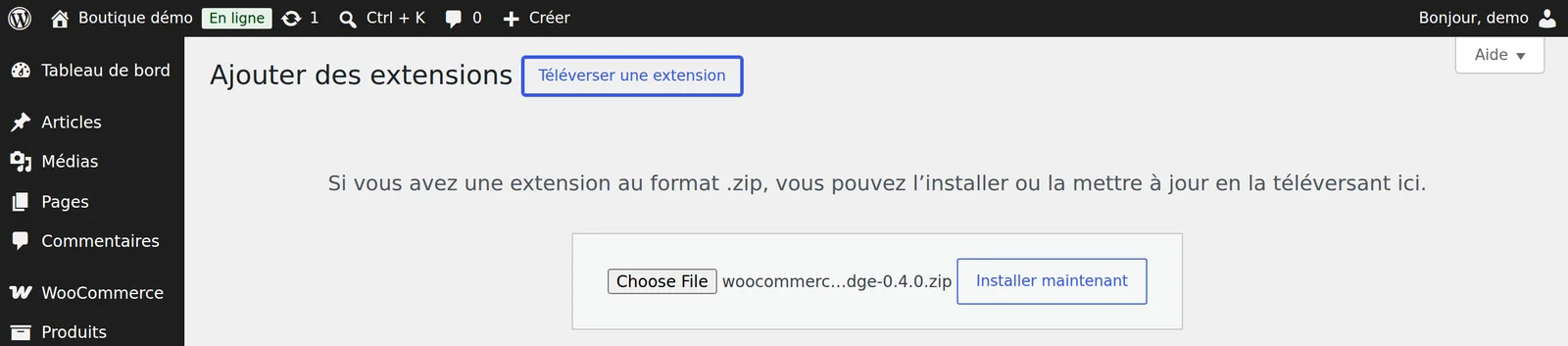
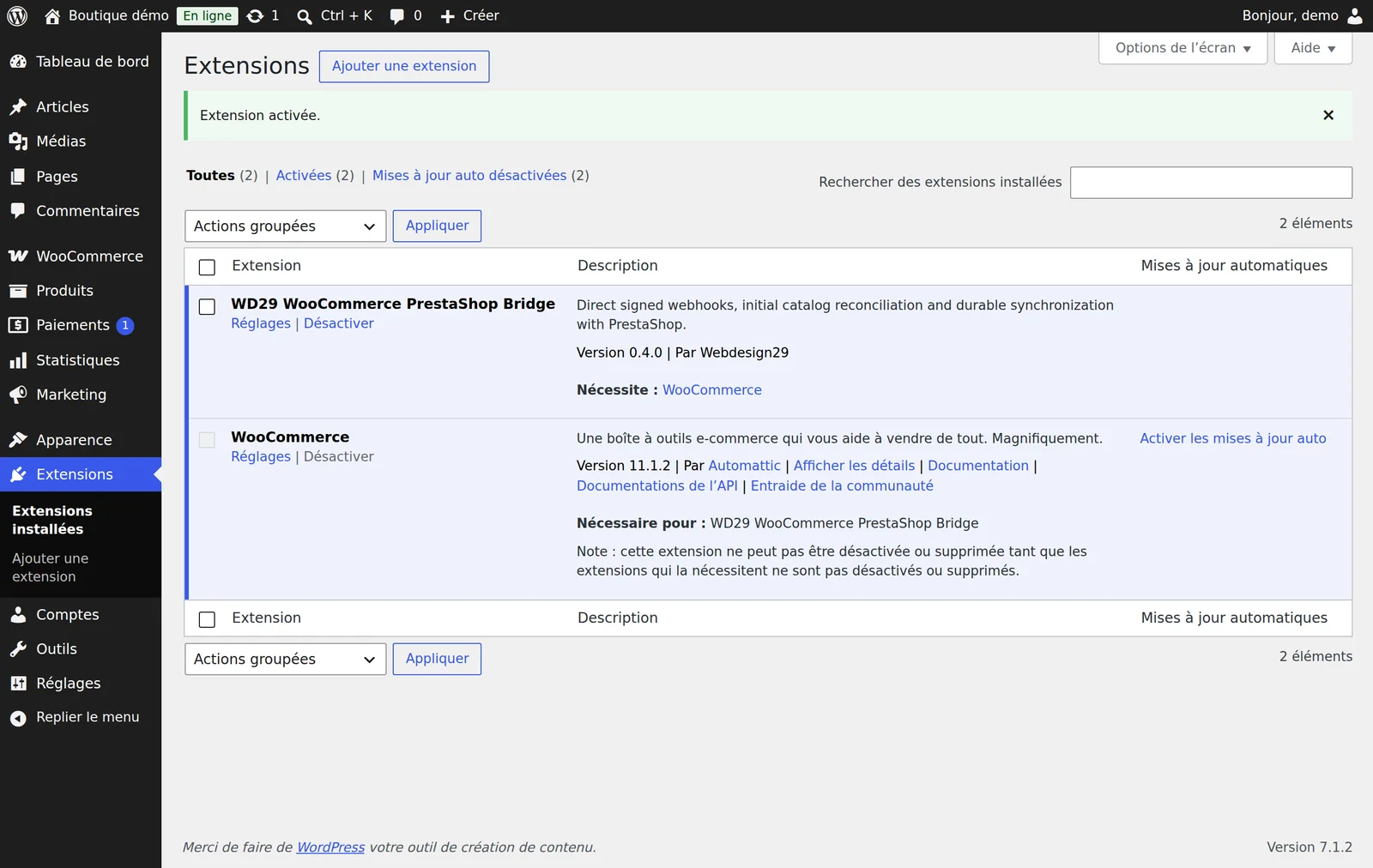
- Once installed, click Activate Plugin. It shows up as WD29 WooCommerce PrestaShop Bridge. WooCommerce must be active; otherwise WordPress says so.
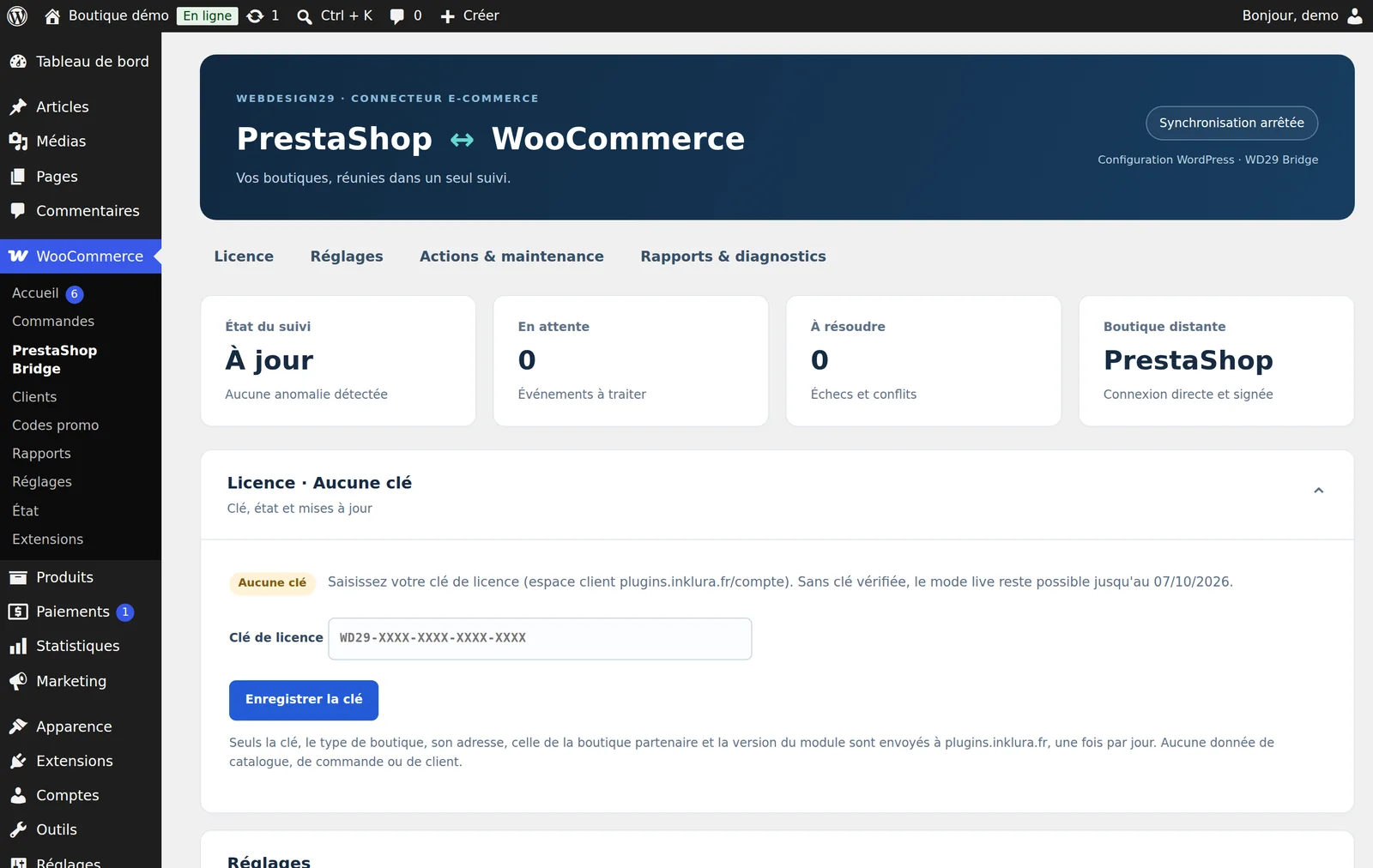
- Open WooCommercePrestaShop Bridge. The panel starts with the Licence block (step 5), then shows the tracking status, the queue and, under Réglages (settings), the Webhook de cette boutique (this shop's webhook): you will copy it into PrestaShop at step 6.
With “Plain” permalinks, the webhook looks like …/index.php?rest_route=/wd29-bridge/v1/webhook. It works, but a readable permalink structure (SettingsPermalinks) gives the shorter address …/wp-json/wd29-bridge/v1/webhook. Choose it before pairing, then copy the address exactly as shown.
4Install on PrestaShop
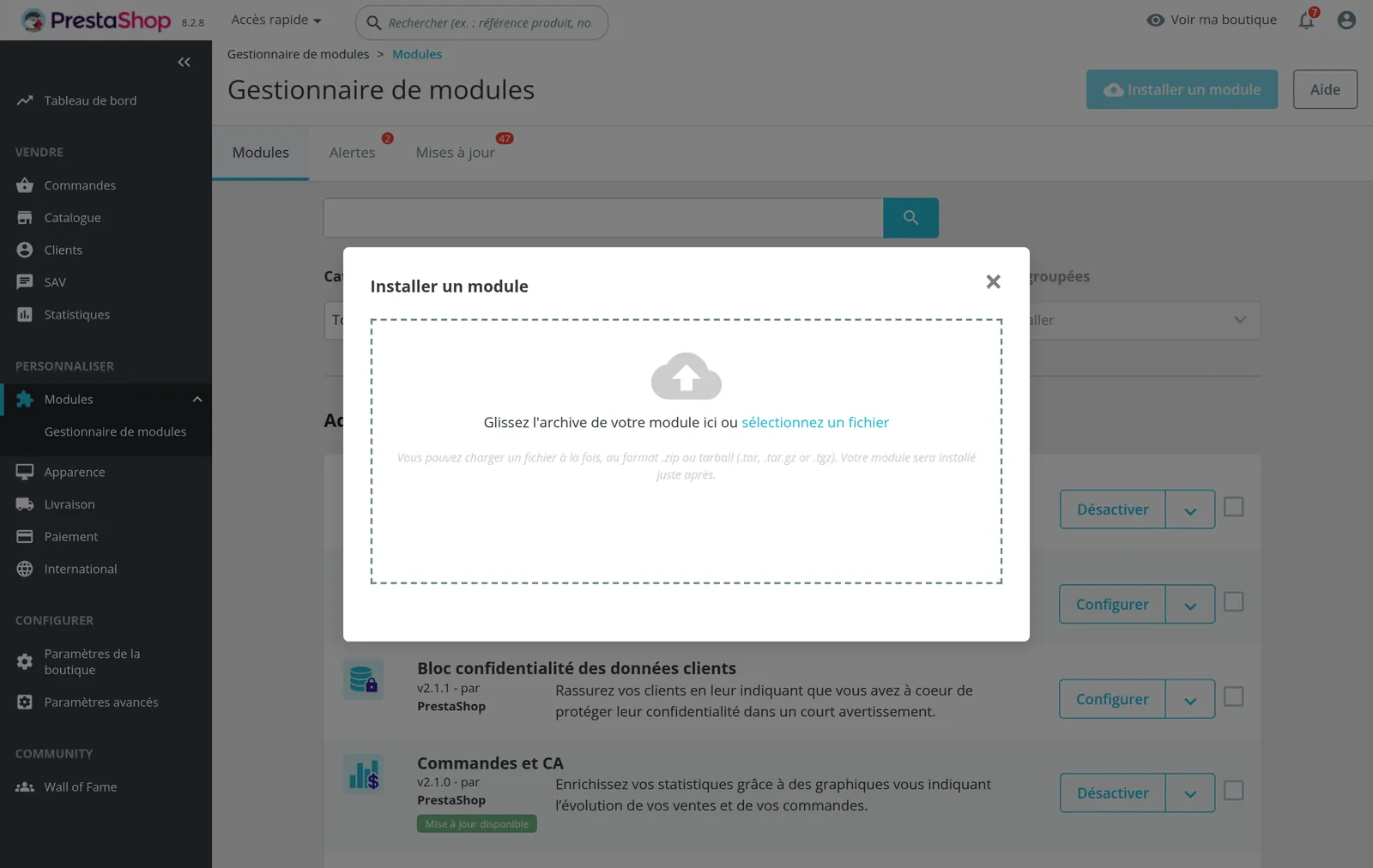
- In the PrestaShop back office, open ModulesModule Manager and click Upload a module at the top right.
- Drag
wd29woobridge-0.4.0.zipinto the window, or click “select file”.
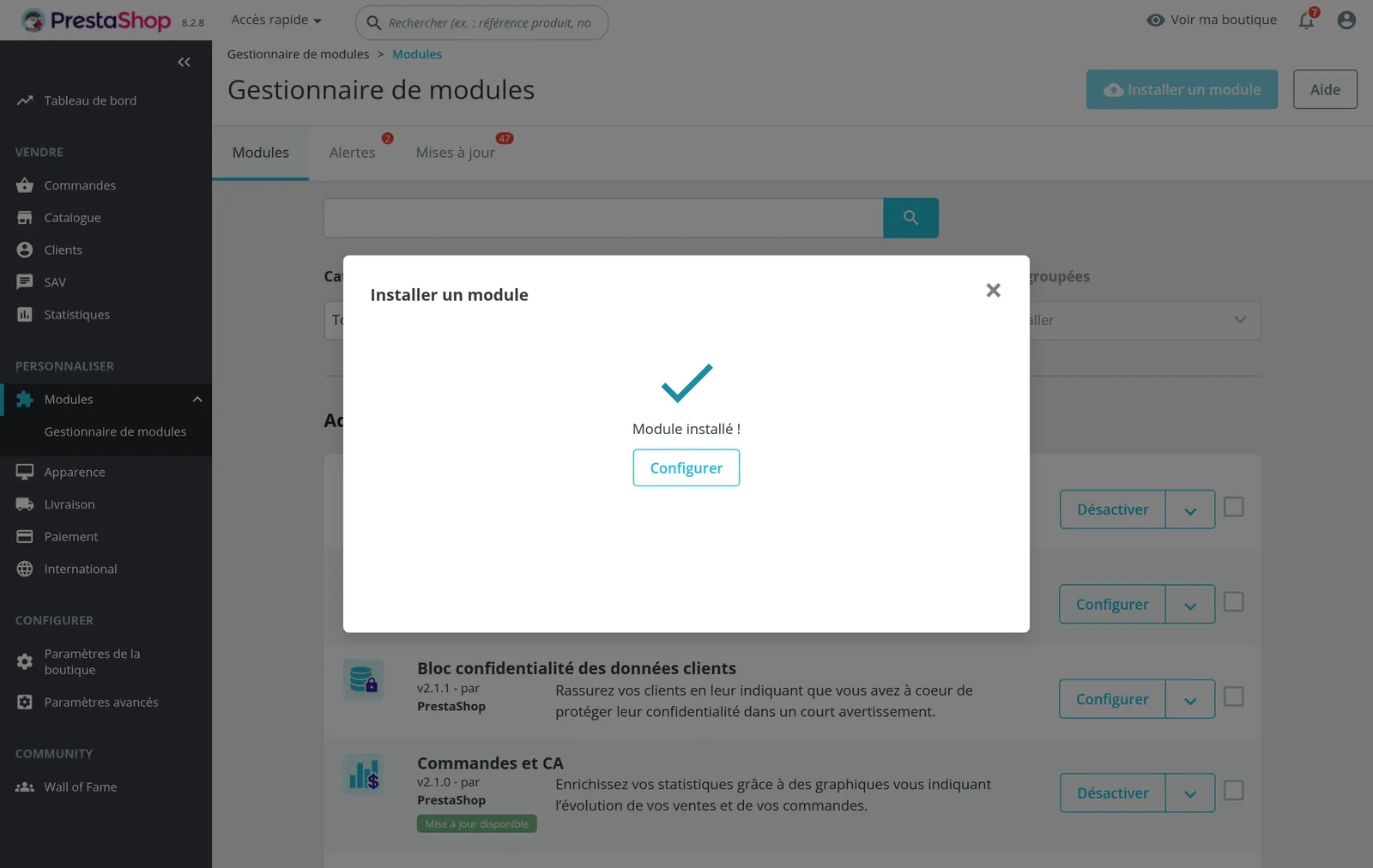
- Click Configure. Later, you will find the module as WD29 WooCommerce Bridge in the Module Manager.
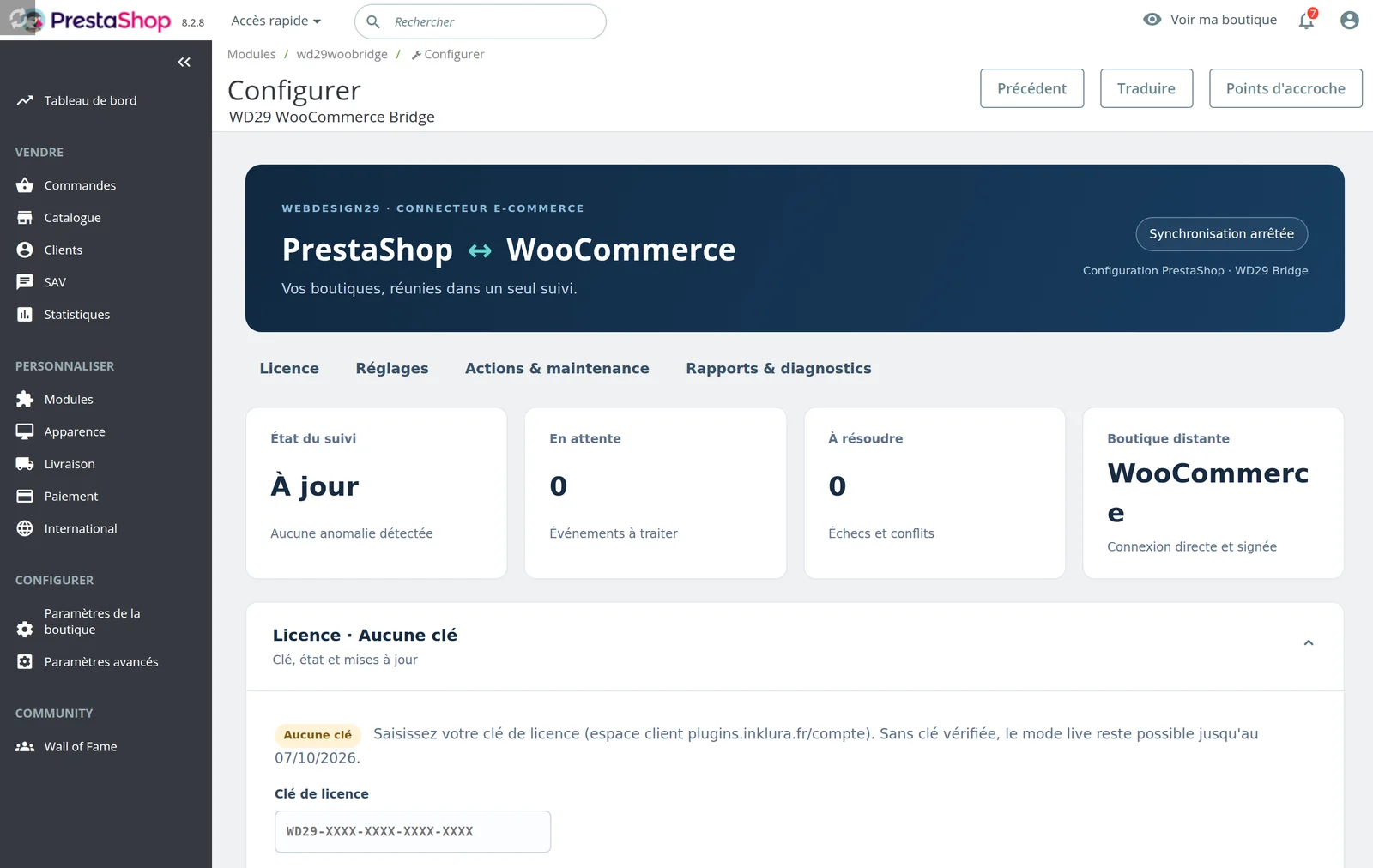
Do not unzip the archive to rename it: PrestaShop identifies the module by this folder name (modules/wd29woobridge) and the webhook address depends on it.
5Enter the licence key
Each extension shows a Licence panel at the top of its settings page (WooCommercePrestaShop Bridge and ModulesWD29 WooCommerce BridgeConfigure). Do the same on both sides:
- Copy the key from your customer area (“Copy key” button).
- Paste it in the Clé de licence (licence key) field, then click Enregistrer la clé (save key). Spaces, dashes and lowercase are accepted.
- The extension activates the shop with plugins.inklura.fr and immediately shows the status: Licence active, plan, pairs in use, expiry and date of the last check.
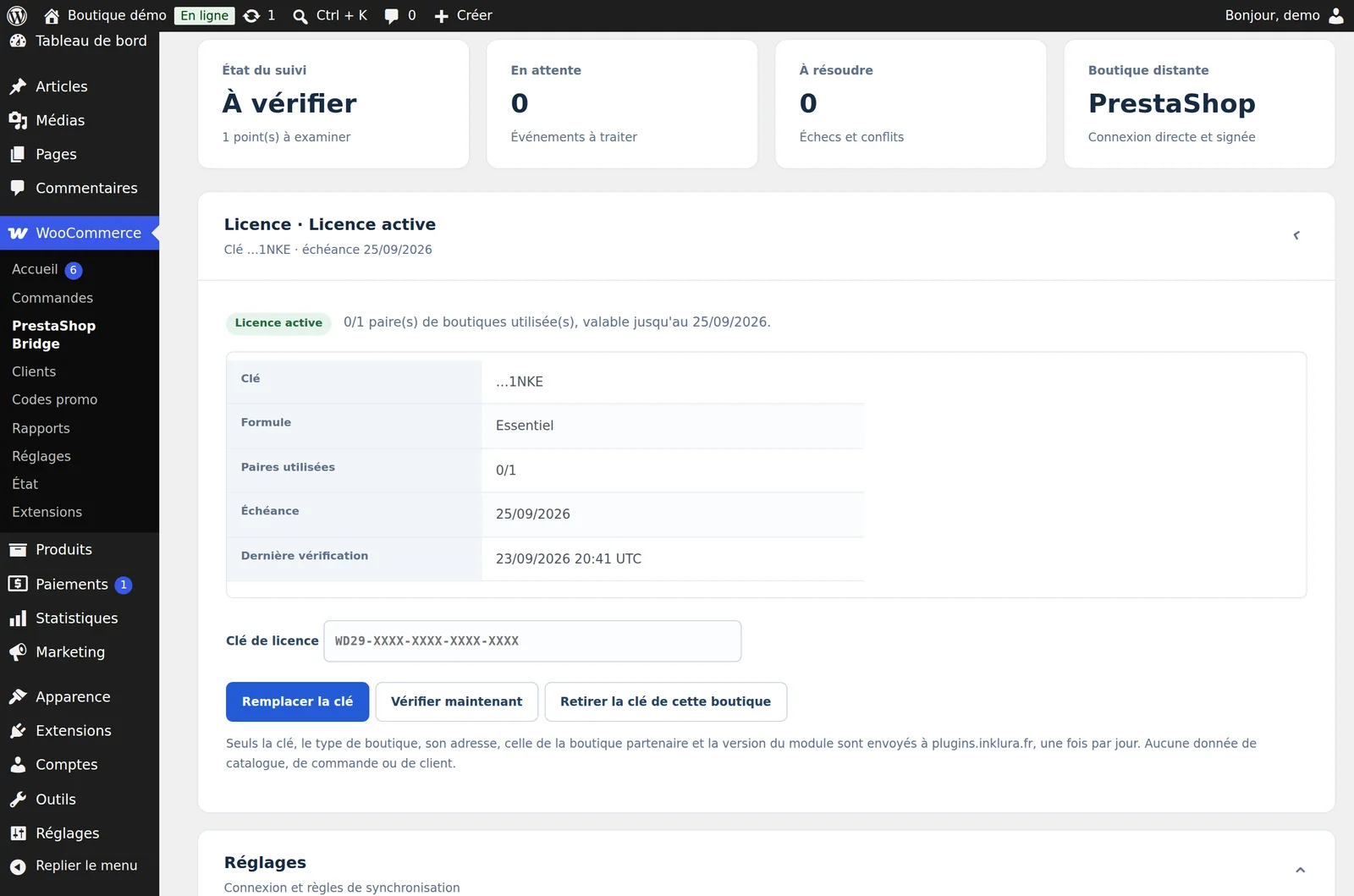
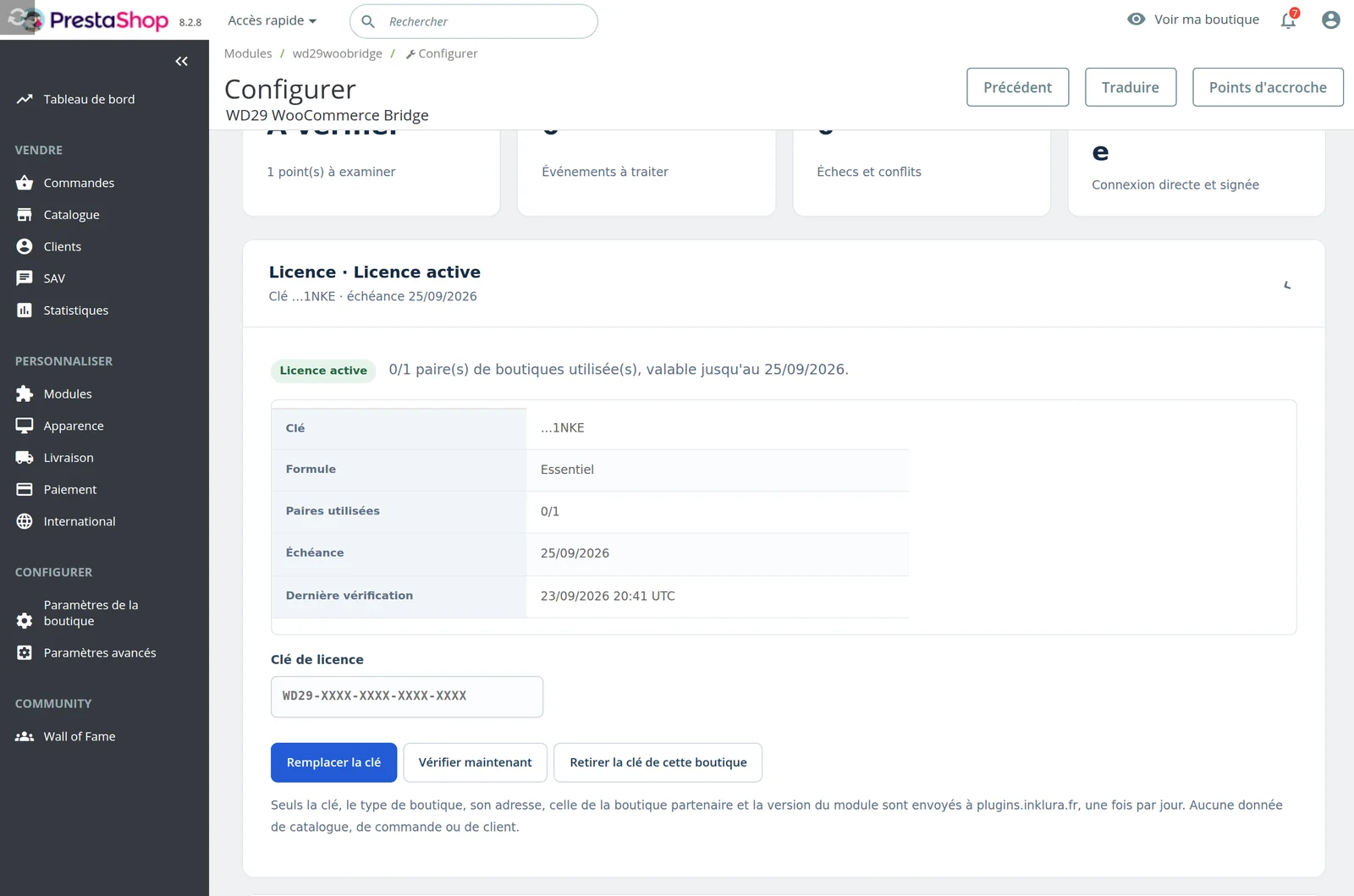
The pair is counted once both shops have reported in: each one sends the other's address, which links them on the server.
The key, the shop type, its address, the partner shop's address and the extension version. Never any catalogue, order or customer.
6Connect the two shops in audit mode
The two extensions authenticate with a shared secret you choose: at least 32 characters, identical on both sides, different from the licence key. Generate it with your password manager or in a terminal:
Never put it in a URL, a ticket, a screenshot or a code repository.
In WooCommerce
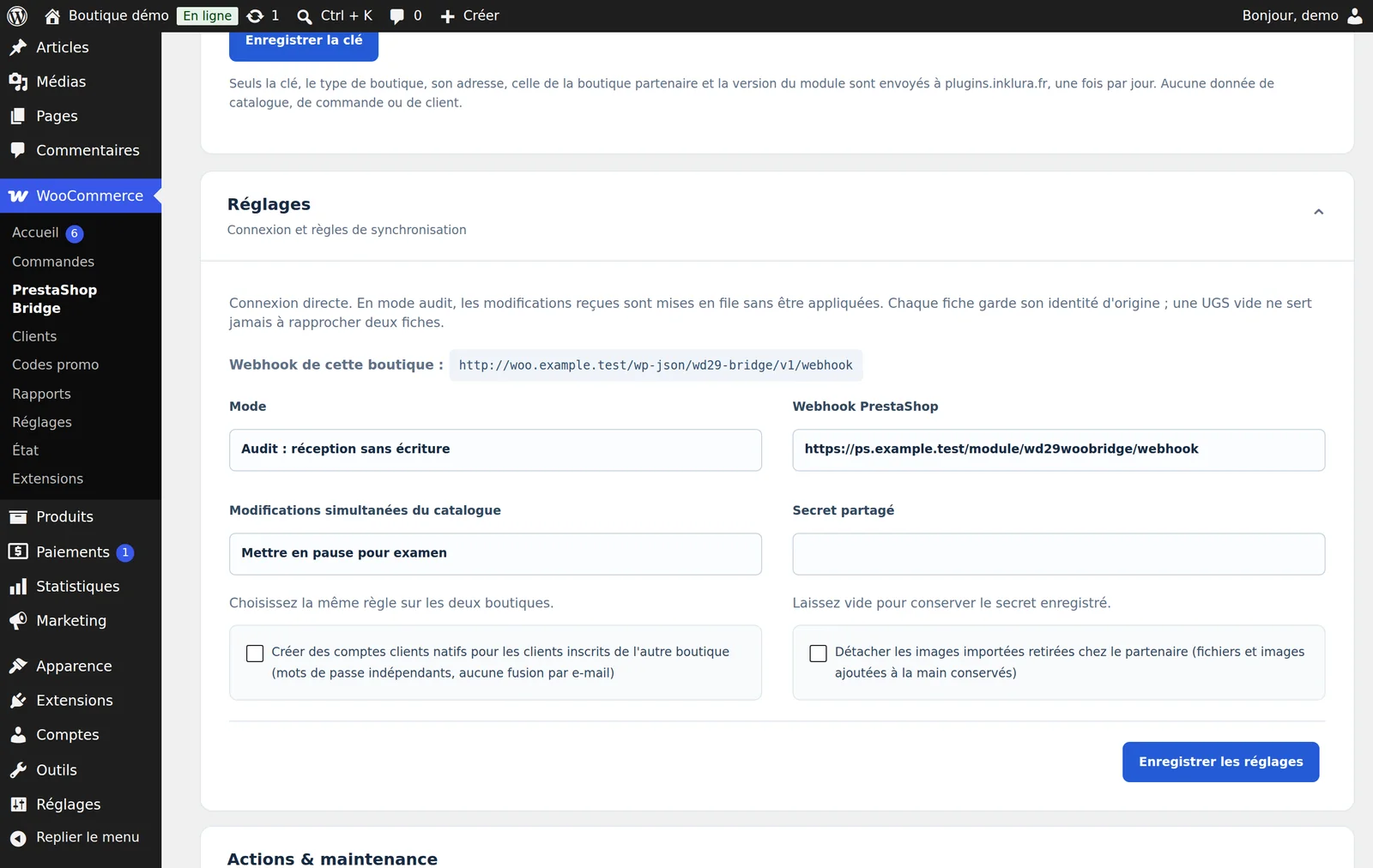
- Mode: Audit : réception sans écriture (audit: receive without writing).
- Webhook PrestaShop: paste the “Webhook de cette boutique” shown by PrestaShop (step 4). It looks like
https://your-prestashop-shop.com/en/module/wd29woobridge/webhook; the language segment depends on your setup. - Modifications simultanées du catalogue (simultaneous catalogue edits): keep Mettre en pause pour examen (pause for review) to start with (when a product is edited on both sides at once, the record waits for your decision), or give priority to one shop. Choose the same rule on both sides.
- Secret partagé (shared secret): paste the secret.
- Leave the two optional boxes unticked for now, then click Enregistrer les réglages (save settings).
In PrestaShop
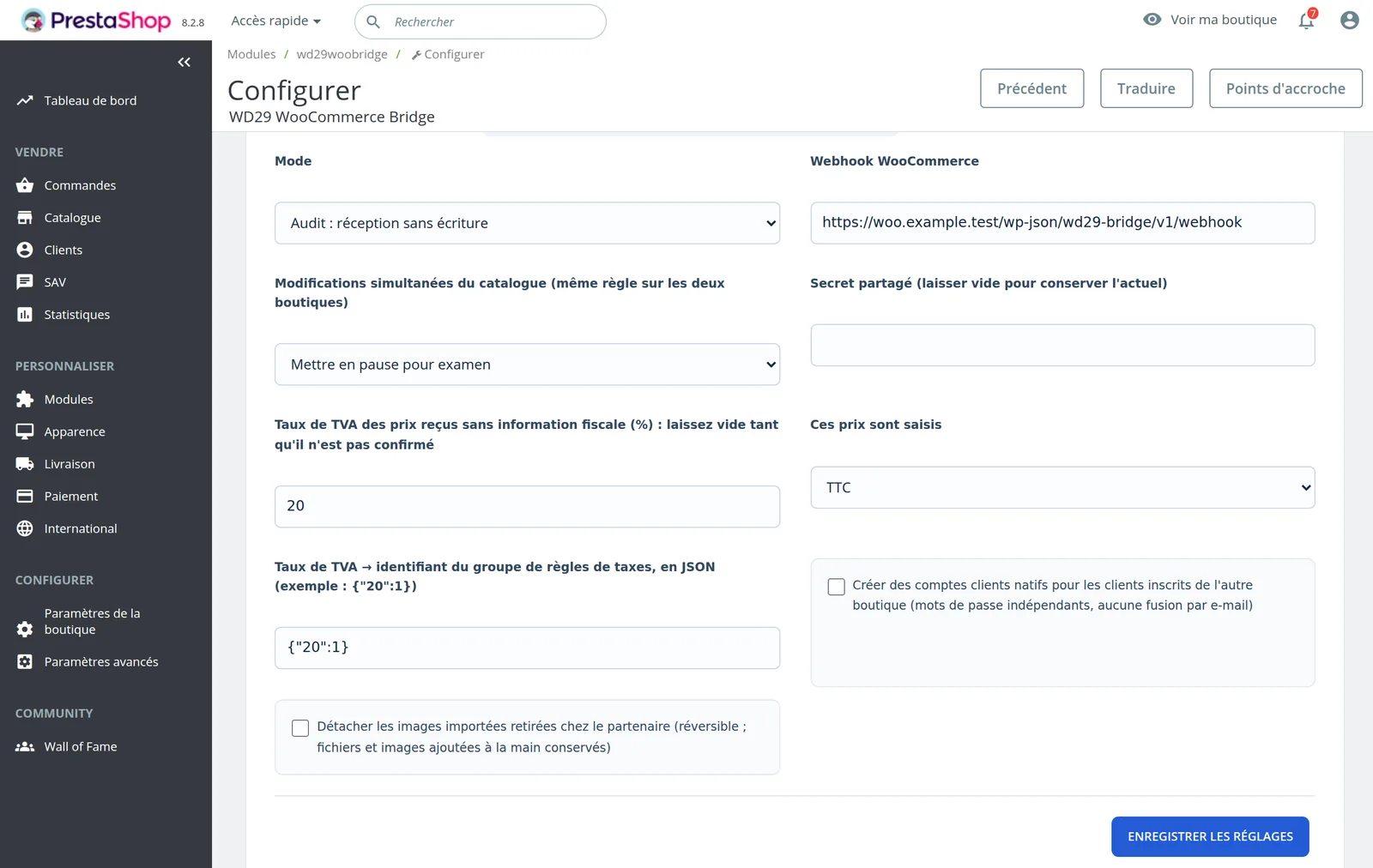
Same settings on the Configure page: audit mode, Webhook WooCommerce (the “Webhook de cette boutique” shown by WordPress, for example https://your-woo-shop.com/wp-json/wd29-bridge/v1/webhook), same conflict rule, same secret. The tax fields are covered in the next step. Click Enregistrer les réglages (save settings).
In audit mode, each shop sends its changes and receives the other's, but applies nothing: no product created, no stock or order changed. You check the reports, then switching to live applies the events received in the meantime.
The two optional settings
Créer des comptes clients natifs (create native customer accounts): creates a real customer account in the other shop for each registered customer, with an independent password. Without this option, customers are copied into a private contact directory, viewable in the panel. No automatic merge by e-mail, no password or marketing consent transferred.
Détacher les images importées retirées chez le partenaire (detach imported images removed on the partner): when an image is removed from a product on the other shop, it is detached here too. Files and images added by hand are kept, and the “Rattacher les images détachées” (reattach detached images) action lets you undo it.
7Check tax settings
The connector never guesses a VAT rate. Before any snapshot:
- WooCommerce: check that taxes are enabled and configured (WooCommerceSettingsTax). Your prices can stay entered including tax.
- PrestaShop, rate mapping: the Taux de TVA → identifiant du groupe de règles de taxes field (VAT rate → tax rules group ID) maps each rate to a PrestaShop tax rules group, in JSON. Example for French VAT:
{"20":1,"10":2,"5.5":3}. The IDs are shown in InternationalTaxesTax Rules, ID column. - PrestaShop, prices without tax information: Taux de TVA des prix reçus sans information fiscale (VAT rate for prices received without tax information) and Ces prix sont saisis (these prices are entered incl. or excl. tax) are only used when a product arrives without a usable rate. Leave the rate empty while you are unsure: the record will be flagged rather than miscalculated.
An eco-tax, a different currency or an unexplained difference in shipping costs and discounts can block a record or an order. This is intended: the record or order then shows up in the diagnostics instead of being imported with a wrong amount.
8Test the connection
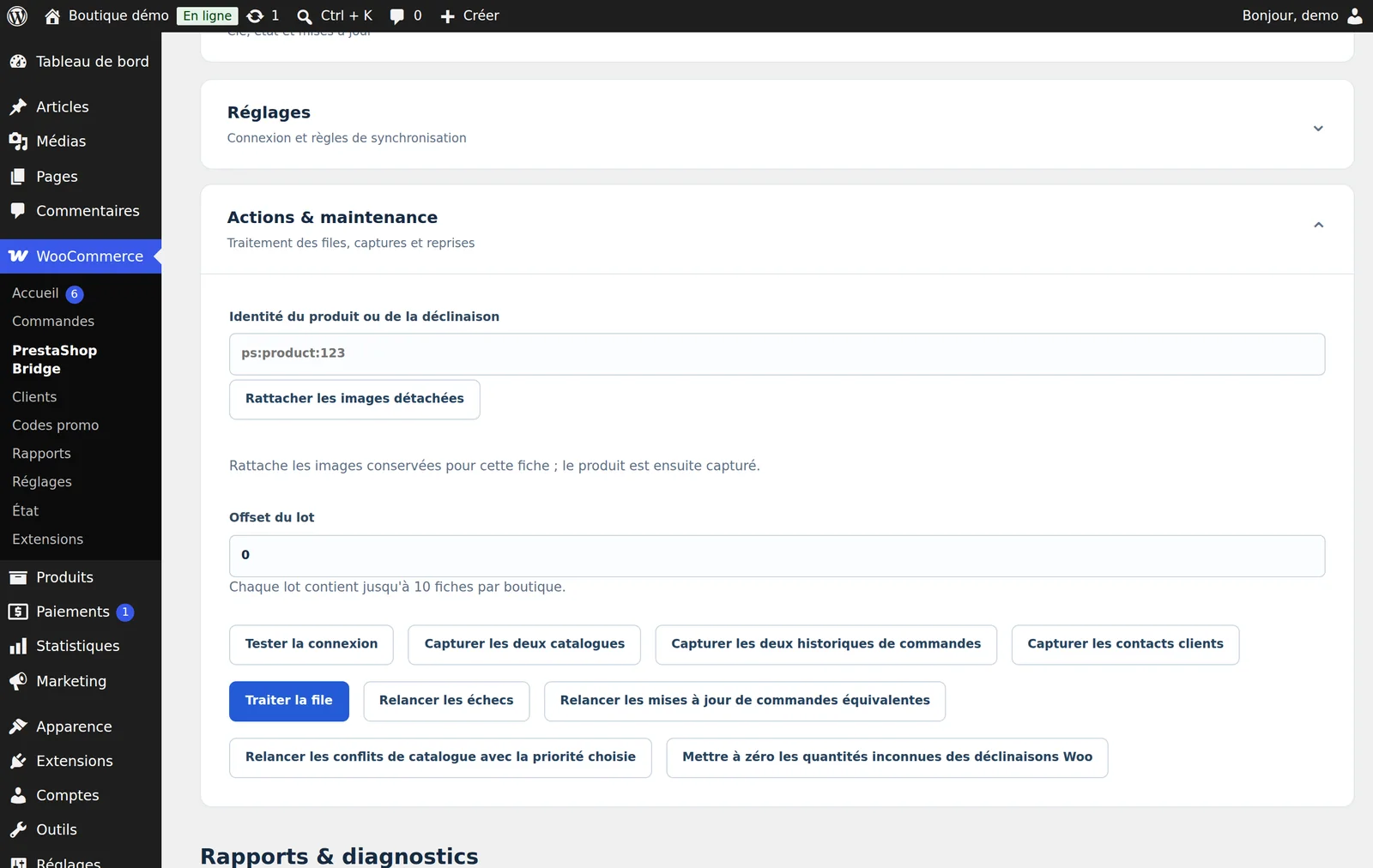
In the WooCommerce panel, open Actions & maintenance and click Tester la connexion (test connection). The extension calls PrestaShop with a signed request and shows its answer at the top of the page. Do the same on PrestaShop.
An answer containing "ok":true confirms that the address, the certificate and the secret are right. If there is an error, see Troubleshooting. The most common cause is a different secret on one side, a badly copied webhook or a web application firewall blocking server-to-server requests.
9Initial snapshots
Snapshots send each shop's existing data to the other, in batches of 10 records. Each record keeps its original identity (for example woo:product:1001): empty SKUs and e-mail addresses are never used to merge two records.
- From WooCommerce, with Offset du lot (batch offset) at 0, click Capturer les deux catalogues (capture both catalogues). The message shows the number of records captured on each side and the next offset.
- Enter that offset (10, 20, 30…) and repeat until you get 0 on both sides.
- Same method with Capturer les deux historiques de commandes (capture both order histories) if you want the order history, then Capturer les contacts clients (capture customer contacts).
- Click Traiter la file (process queue) to send what is waiting straight away.
For a large catalogue, you can also let the worker do it (next step): on each run, it captures 10 records of each type and picks up where it left off.
Then, in Rapports & diagnostics (reports and diagnostics), check on both shops: the event log, the catalogue audit (unknown stock stays “unknown”, never zero), orders and their unlinked lines, contacts. On WordPress, unknown PrestaShop order statuses are created with their original label; map them to a WooCommerce status if needed in Statuts des commandes (order statuses).
10Schedule the cron task (worker)
Sync moves forward thanks to a worker run every minute on each shop's server, under the site's usual system account. Without it, nothing is sent until someone clicks “Traiter la file”. WP-Cron is not enough, because it depends on visits.
First test the command by hand (adapt the paths):
Then add the matching line to the site account's crontab (crontab -e), one per server, after creating a private log folder:
No secret appears in these commands: the worker reads the settings saved in the shop. A lock prevents two runs at the same time. On shared hosting without SSH, use the host's “cron jobs” interface with the same command.
Monitoring
The same command with --command=health runs a read-only check, with no customer data. Exit code 0: all good; 2: something to look at; 1: the worker does not start; 64: wrong arguments. Plug this code into your hosting's monitoring: the extension sends no alerts itself.
11Checks, then live mode
Before going live, run these checks with a test product and a test payment method:
- A WooCommerce order: a single mirror in PrestaShop, same total incl. tax and same tax, stock deducted once.
- A PrestaShop order (or a till sale): a single mirror in WooCommerce, correct status, stock deducted once.
- A cancellation or return on the original shop: status and refund record copied, stock restored once.
- Stop one shop's worker for a few minutes, make a change, then restart it: both shops converge and the diagnostics turn green again.
- The same product edited on both sides: the chosen conflict rule applies.
When everything is right, set Mode to Synchronisation live on both shops and save. Events received during the audit are applied on the worker's next runs.
Payments and refunds are never replayed: a refund made on WooCommerce shows up in PrestaShop for information, with no second refund, credit note or restock. Always do these operations on the shop where the order was placed.
12Licence check
A licence covers one or more pairs: one WooCommerce shop and one PrestaShop shop (Essentiel and Pro: 1 pair, Agence: the number set in the quote). Development hosts (localhost, 127.0.0.1, *.test, *.local, *.localhost, *.example) are never counted.
The licence decides only one thing: whether a shop set to live mode can apply the events it receives. Otherwise, it carries on in audit mode: everything is received and kept, nothing is deleted, and live mode resumes on its own as soon as the licence is valid again.
| Status | Live mode |
|---|---|
| Active licence | On |
| Payment pending | On; update your payment method from the customer area |
| Expired licence | On for 14 days after expiry, then audit |
| All pairs in use | On for a shop already activated; a new shop stays in audit |
| No key entered | On for 14 days after installation, then audit |
| Unknown or revoked key | Audit straight away |
Daily check
- Each shop checks its licence once a day, from the worker (step 10), never while a customer is browsing. The request is capped at 8 seconds.
- Every answer is signed (Ed25519) and verified by the extension: it must be about this shop and this key, and be recent.
- Server unreachable or answer that cannot be verified: nothing changes. The extension tries again later (one to six hours) and reports it in the diagnostics after three days without an answer.
- The Vérifier maintenant (check now) button forces a check, for example right after a renewal.
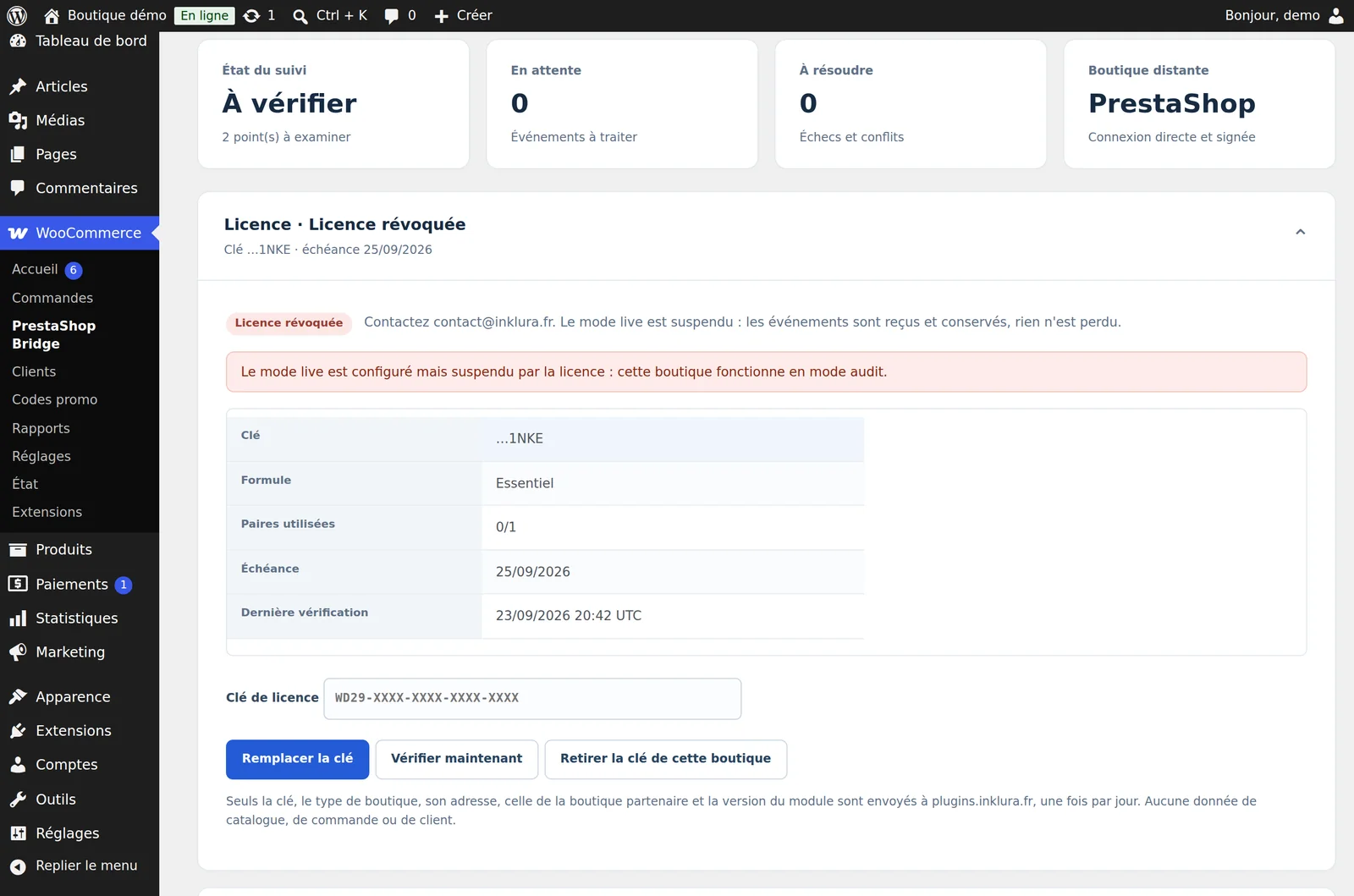
A banner also shows the licence status on every admin page, as long as action is needed:

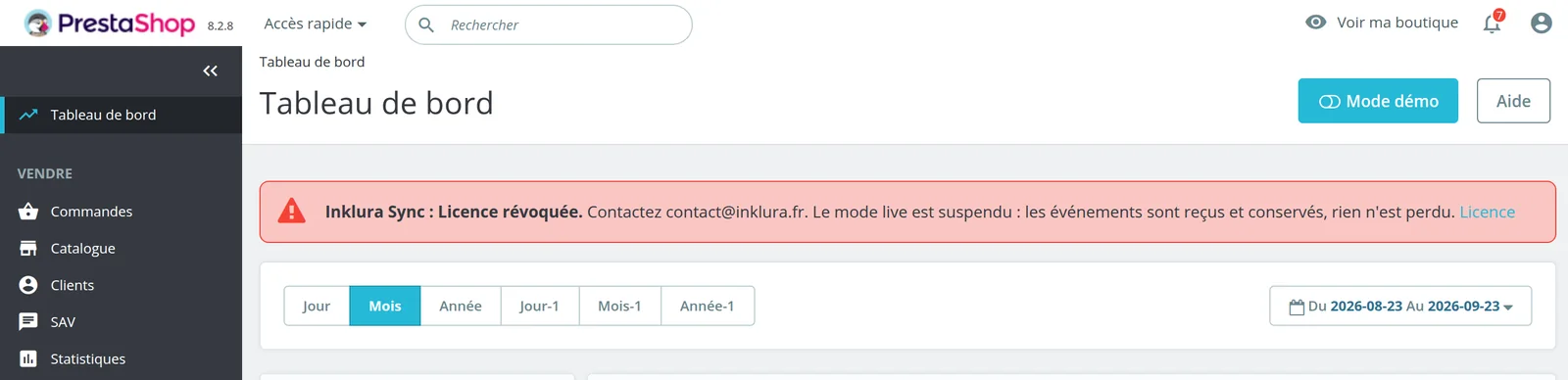
The banners disappear as soon as the licence is valid again.
Changing shops
On the old shop, click Retirer la clé de cette boutique (remove the key from this shop): the pair is released on the server. If the old shop is no longer reachable, use “Release” on the pair in your customer area. Then enter the key on the new shop.
13Updating
With an active licence, both extensions update from their own admin. Each archive is downloaded with your key and its SHA-256 checksum is checked before installation. Settings, mappings and history are kept.
- WordPress: the new version shows up in Plugins and in DashboardUpdates, like any plugin. Click Update now. WordPress looks for new versions twice a day.
- PrestaShop: the Licence panel shows “Version X disponible” (version X available) and a Mettre à jour le module (update the module) button. The module files are replaced one by one, after a full check of the archive.
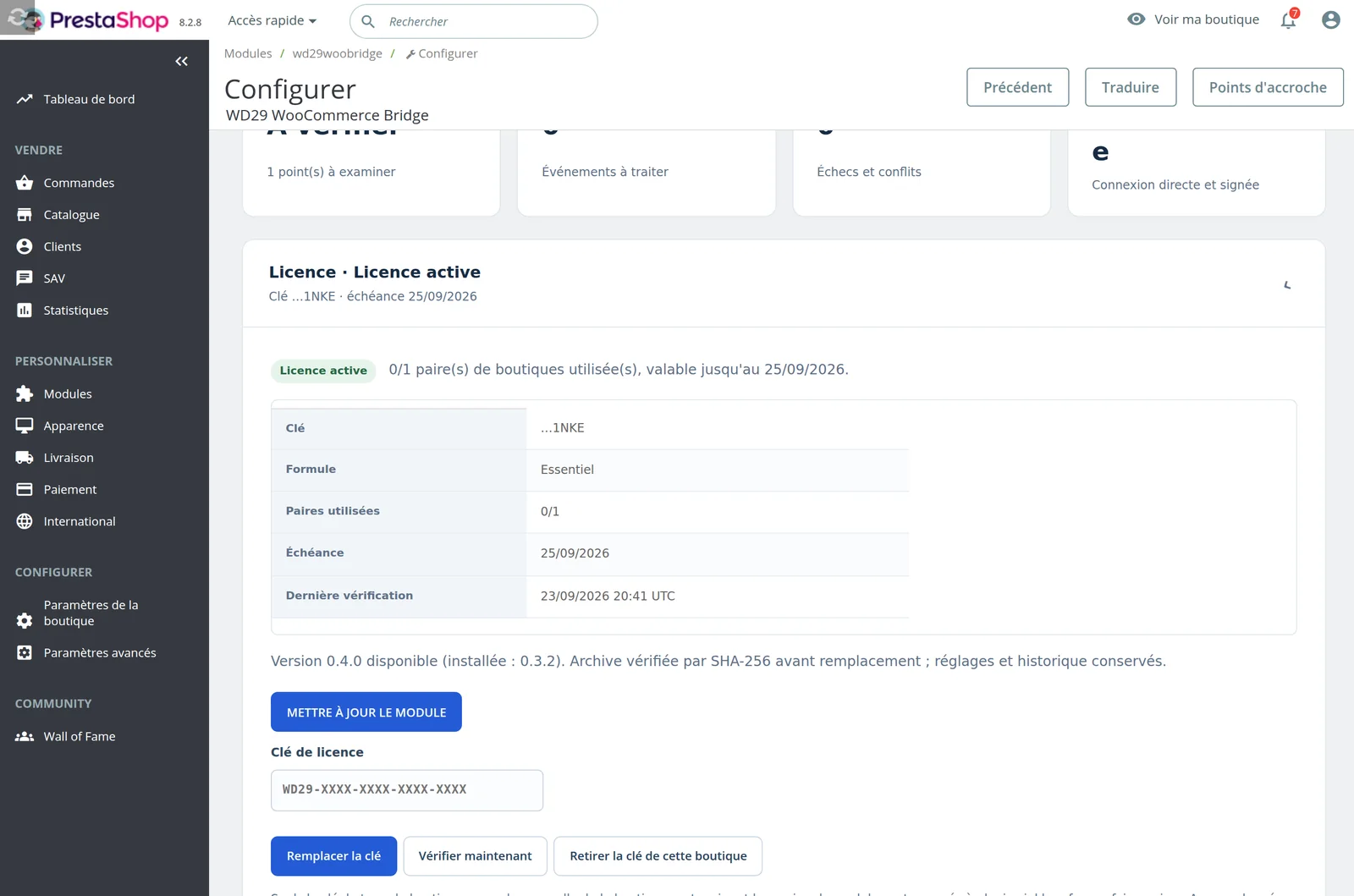
Keep the same version on both sides: update the two shops one after the other, then check the diagnostics. Without an active licence, or without outgoing access to plugins.inklura.fr, download the archives from the customer area and install them as in steps 3 and 4 (WordPress then offers Replace current with uploaded).
Details of each version and the archive checksums are on the Inklura Sync versions page.
14Troubleshooting
Messages when saving
| Message (as shown) | Cause and fix |
|---|---|
Use an HTTPS endpoint without credentials or a nonstandard port. | The other shop's webhook address must start with https://, with no credentials in the URL and no port other than 443. A staging shop behind HTTP password protection or served on :8443 cannot be paired as is. |
Le secret partagé doit compter au moins 32 caractères. | The shared secret is too short (32 characters minimum). Generate a new one (see step 6) and paste exactly the same value on both sides. |
Renseignez l'adresse HTTPS du webhook partenaire et le secret partagé avant d'activer la synchronisation. | You chose audit or live while the other shop's webhook or the secret is missing. Fill in both, or leave the mode on “Arrêtée” (stopped). |
Cette boutique a déjà des correspondances avec un autre partenaire : changer de partenaire demande une migration de ses tables privées. | The extension has already synced records with another shop. Changing partner requires migrating its tables: write to us before doing anything. |
Clé de licence invalide : format attendu WD29-XXXX-XXXX-XXXX-XXXX. | The pasted key is incomplete. Copy it again from the customer area with the “Copy key” button. |
Réponse de licence périmée : vérifiez l'horloge du serveur. | The shop server's clock is more than two days off. Fix it (NTP), then click “Vérifier maintenant” (check now). |
Extension PHP sodium absente : réponse de licence non vérifiable. | Ask your host to enable the sodium extension (bundled with PHP since 7.2). Until then, nothing changes. |
Formulaire expiré : rechargez la page. | PrestaShop: the configuration page has expired. Reload it from the Module Manager and start again. |
Diagnostics
The codes below appear in Rapports & diagnostics and in the output of --command=health.
| Code | Meaning |
|---|---|
licence_paused | Live mode is suspended by the licence: enter or renew the key, then “Vérifier maintenant” (check now). |
licence_missing | No verified key: live mode continues until the date shown, then switches to audit. |
licence_expired | Licence expired, within the grace period: renew from the customer area. |
licence_seats_exhausted | All pairs of the licence are in use: release one or move to the Agence plan. |
licence_unreachable | No answer from the licence server for more than three days: check outgoing HTTPS to plugins.inklura.fr. Nothing changes meanwhile. |
worker_stale | The worker has not run for more than 5 minutes, or never: normal right after installation, set up at step 10. |
capture_failed | A source record could not be captured. Fix it in its shop: the next capture of that record clears the alert. |
peer_unreachable | The other shop does not answer over HTTPS: certificate, firewall, web application firewall (WAF) or wrong webhook address. |
event_retrying | A delivery fails and is retried, from every 60 seconds up to once an hour. Check the error in the log; nothing to restart for a brief outage. |
retry_exhausted | Eight failures in a row: automatic retries stop for this record. Fix the cause, then use “Relancer les échecs” (retry failures). |
record_conflict | The same record was edited on both sides. Compare the two versions before choosing catalogue priority; orders and customers are never forced. |
queue_delayed | The queue is moving slowly: check that both workers run and that no older event is blocking the record. |
Other situations
- Test connection fails although everything looks right: a web application firewall, Cloudflare or a security plugin may block POST requests between servers. Allow the webhook path of each shop.
- Nothing moves: is the mode audit (receive without applying)? Is the worker running on both sides? The panel's “En attente” (pending) counter should go down every minute.
- Stock shown as unknown: normal for a product whose source shop does not track stock. The Mettre à zéro les quantités inconnues des déclinaisons Woo (set unknown Woo variation quantities to zero) action should only be used knowingly.
When you write to us, give the versions of WordPress, WooCommerce, PrestaShop and the extension, and the diagnostic code. Mask personal data in screenshots and logs.
15Uninstalling
First set the mode to Arrêtée (stopped) on both sides and remove the crontab lines. Deactivation keeps the mappings and the deduplication history, so you can resume without duplicates. Do not reuse this data to connect another pair of shops.
Products, orders and customers created in each shop stay in place: they are native records.