Commerce Pro's own screens are in French. This guide quotes their labels in French, with an English translation where useful.
1Before you start
Commerce Pro comes as two separate extensions, one per platform. Each works on its own: you need neither both nor Inklura Sync. Install the one for your shop.
| Item | Required |
|---|---|
| WooCommerce | WordPress 6.4 or later, WooCommerce 8.2 or later, PHP 7.4 or later. Classic cart or block-based cart. |
| PrestaShop | 8.2 or 9.1, native checkout, one selected shop at a time for staff tools |
| PHP | The sodium extension (shipped with PHP) to verify paid-edition licences; outbound HTTPS to plugins.inklura.fr |
| Scheduled tasks | WP-Cron running on WordPress; on PrestaShop, "cron jobs" or SSH access for two hourly commands (step 14) |
| Access | An administrator account for the shop |
On first installation, every module is disabled. Updates preserve settings and already enabled modules; newly introduced features stay disabled until you enable them. Explicitly choose the tools that can act on your shop.
Before enabling cart rules, check how they behave with your theme, your checkout and any multicurrency or express payment extension: these may need adjustments.
2Choose your edition
The same archive serves all three editions: the licence key unlocks the modules. A paid licence covers one shop, WooCommerce or PrestaShop.
| Edition | Price | Includes |
|---|---|---|
| Free | No key | Configurable sale badge, essential product checks (missing images and descriptions) |
| Starter | €49 excl. VAT per year | Free, plus new-product badges, stock messages, minimum order and cart quantities, stock and order follow-up, stock, history and prices on product pages, product-page sync |
| Premium | €99 excl. VAT per year | Starter, plus targeted rules, quantity discounts, CSV exports, variation grid, physical stocktake, advanced product checks, replenishment forecasts and back-in-stock alerts |
On a shop already activated with a valid Inklura Sync Pro licence, enter the same key in Commerce Pro: Starter is unlocked with no extra subscription. Sync Essentiel and Agence do not include Starter, and Premium always needs its own licence.
Feature details are on the Commerce Pro page, and the offer rules in the specific terms.
3Get the archives and the key
The archives are a free download, no account needed, in the Downloads section of the Commerce Pro page. They are also in your customer area:
inklura-commerce-pro-0.7.5.zipfor WordPress (WooCommerce);inkluracommercepro-0.7.5.zipfor PrestaShop.
For Starter or Premium, the licence key (format WD29-XXXX-XXXX-XXXX-XXXX) appears in your customer area once payment is confirmed. With Sync Pro, use your Sync licence key. Do not unzip or rename the archives.
4Install on WooCommerce
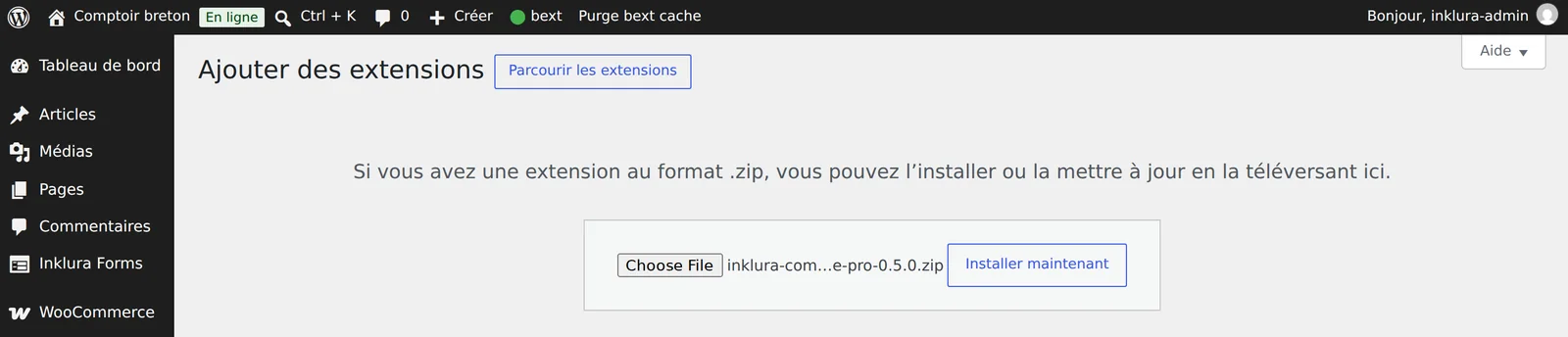
- In the WordPress admin, open PluginsAdd New Plugin and click Upload Plugin.
- Choose
inklura-commerce-pro-0.7.5.zip, click Install Now, then Activate Plugin. WooCommerce must be active.
- Open WooCommerceCommerce Pro. The page has five tabs: Modules, Stocks à surveiller (stock to watch), Commandes à suivre (orders to follow up), Licence and À propos (about).
With WP-CLI: wp plugin install inklura-commerce-pro-0.7.5.zip --activate, then wp inklura commerce status to check the installation.
5Install on PrestaShop
- In the back office, open ModulesModule Manager and click Upload a module at the top right.
- Drop
inkluracommercepro-0.7.5.zipinto the window, or click "select file". PrestaShop installs the module straight away.
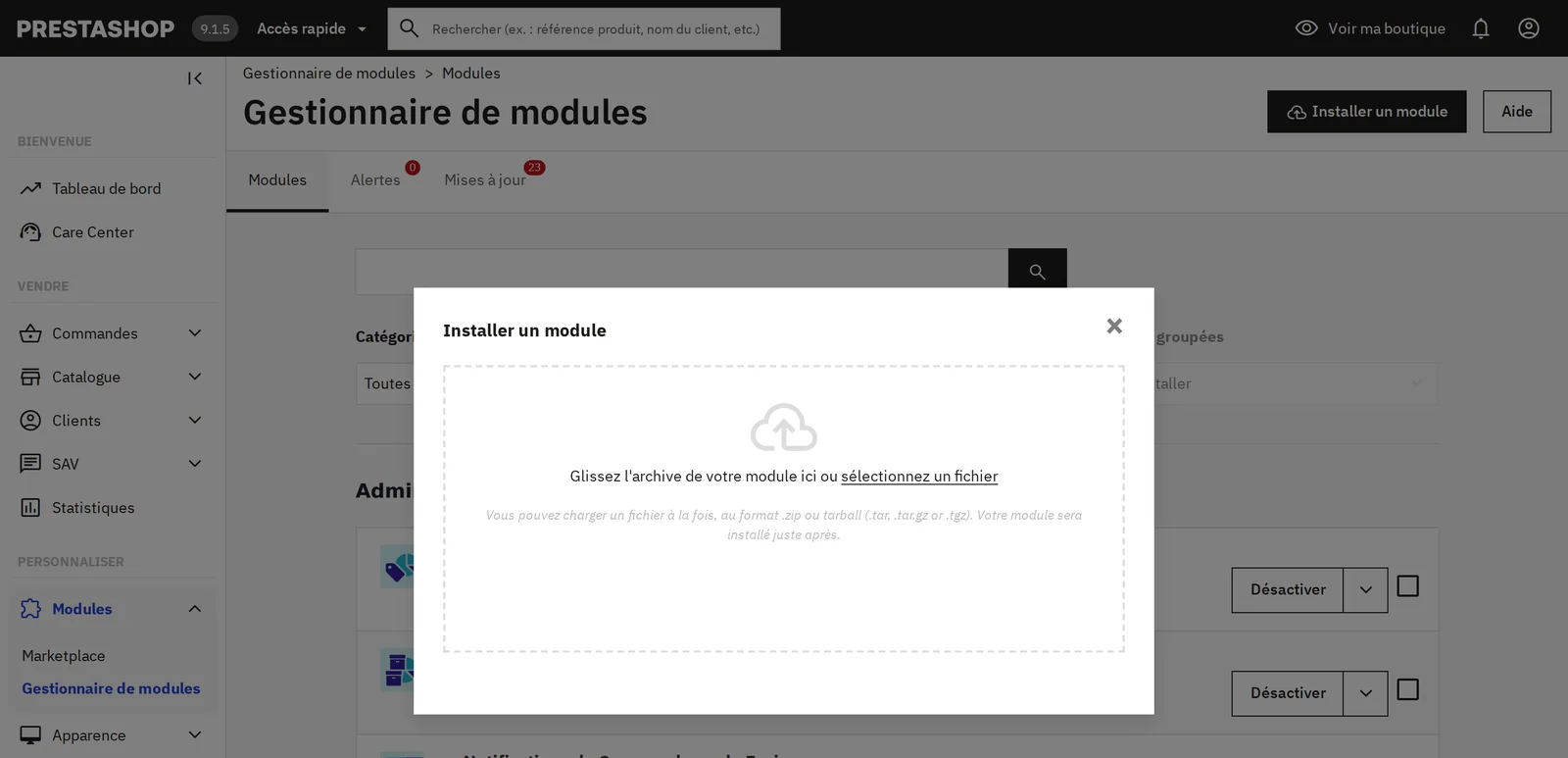
- Click Configure. Later, you will find the module as Inklura Commerce Pro in the Module Manager. The configuration page has the same tabs as on WooCommerce.
PrestaShop identifies the module by its folder name (modules/inkluracommercepro). Install the archive as is, without extracting or renaming it.
6Enter the licence key
This step only applies to Starter and Premium: the free edition works without a key.
- Open the Licence tab.
- Paste the key into the field, then click Activer la clé (activate key).
- The tab shows the result at once: Édition effective (effective edition), Origine (Licence Commerce Pro or Inclus avec Inklura Sync Pro, included with Sync Pro), dates of the last and next check, and how long the local entitlement is valid.
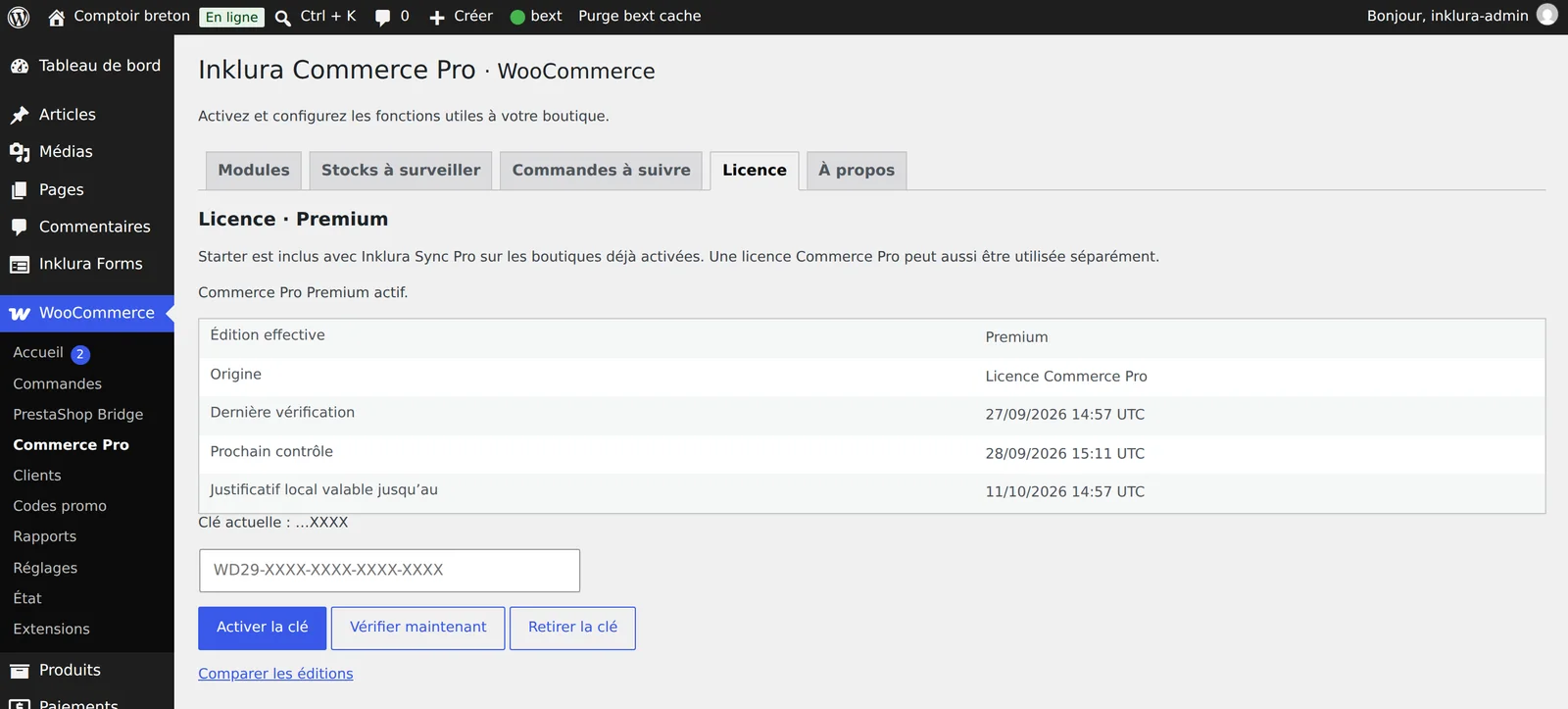
On PrestaShop the tab is the same, with a reminder of the scheduled task needed for automatic renewal (step 14).
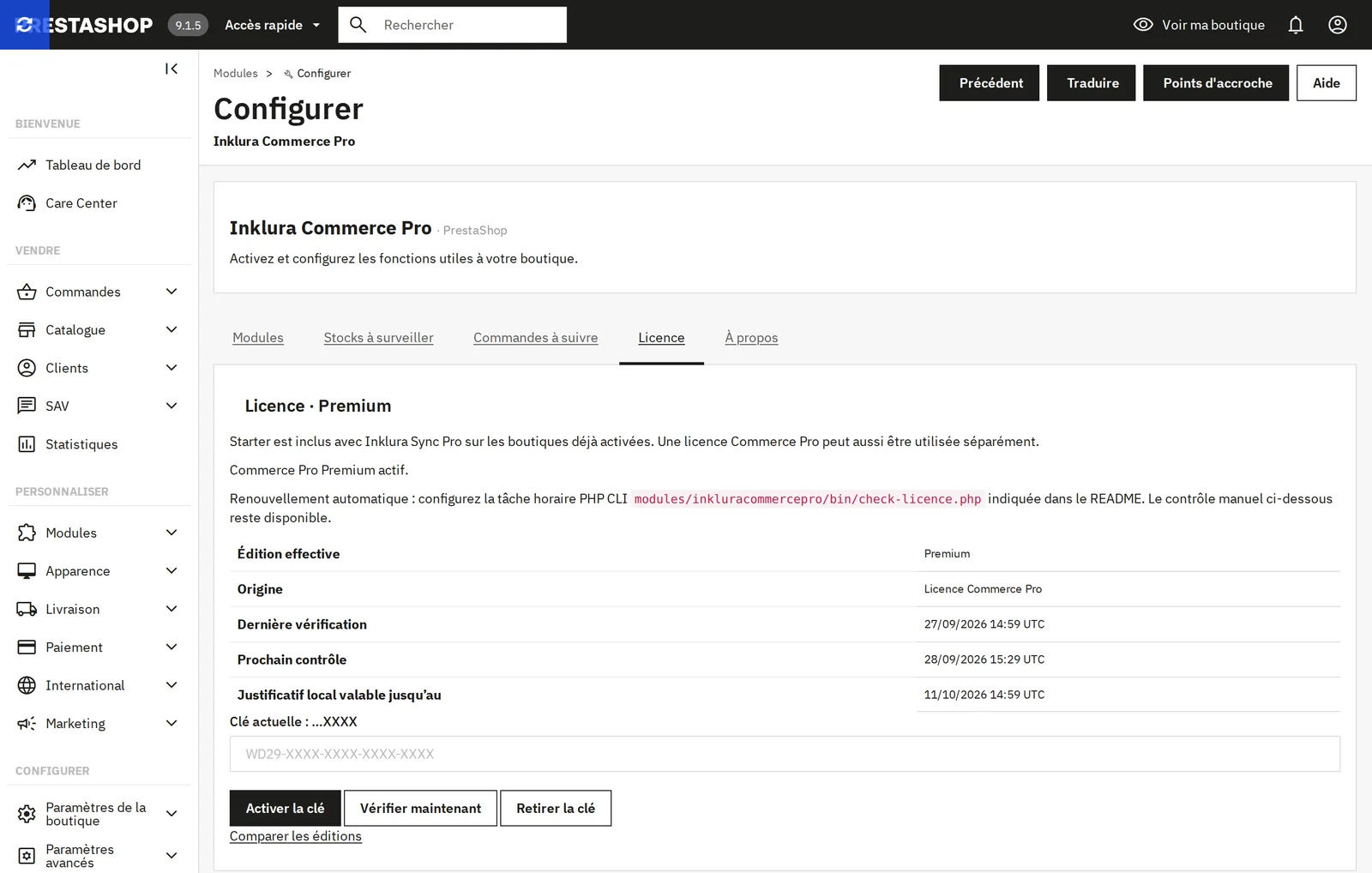
The licence is checked once a day. Each successful check renews a signed entitlement valid for up to 14 days and never beyond the paid period, so a brief licence server outage disables nothing. Vérifier maintenant (check now) forces a check, for example after a renewal. No licence request is made while customers browse or check out.
The key, the shop's domain, the platform and the extension version. Never catalogue, order or customer data.
7Enable modules
The Modules tab lists the nineteen features with their category, required edition and status. For each one:
- Click Configurer (configure) to open its settings, then Enregistrer les réglages (save settings).
- Tick Activer ce module (enable this module) in its settings, or use the Activer button in the list. Désactiver (disable) keeps the settings.
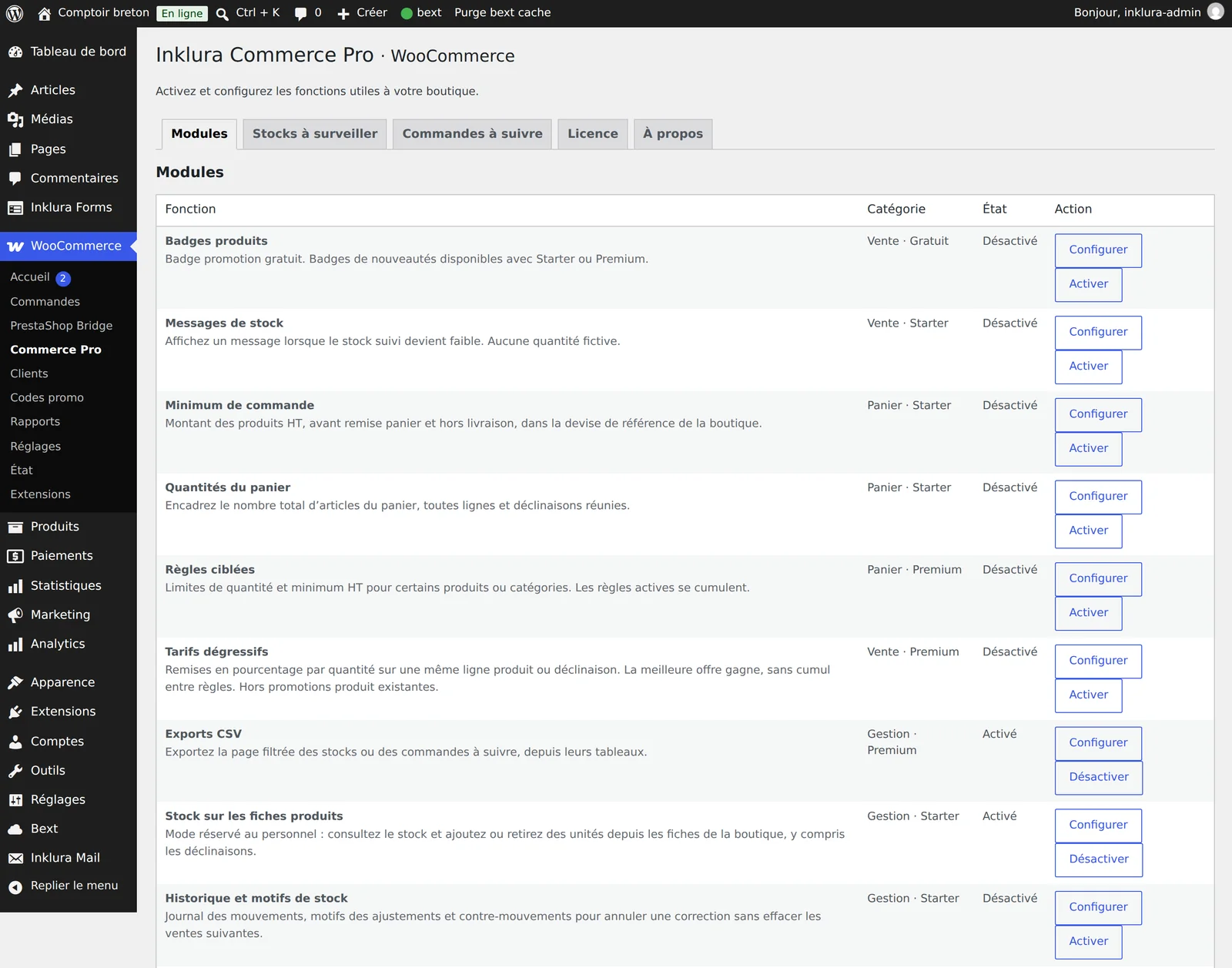
A module above your edition cannot be enabled. If your licence expires or moves to a lower edition, the affected modules stop but their settings stay saved. Two modules need some preparation: Règles ciblées and Tarifs dégressifs require at least one active rule, and Commandes à suivre at least one monitored status.
The nineteen modules and their edition
| Module | Edition |
|---|---|
| Badges produits (Product badges) Sale badge; new-product badge from Starter | Free |
| Messages de stock (Stock messages) Message when tracked stock runs low | Starter |
| Tarifs dégressifs (Quantity discounts) Percentage discount based on the quantity of one line | Premium |
| Alertes de retour en stock (Back-in-stock alerts) Confirmed email alert for an out-of-stock product | Premium |
| Minimum de commande (Minimum order) Minimum product amount excluding tax | Starter |
| Quantités du panier (Cart quantities) Minimum, maximum and multiple of items | Starter |
| Règles ciblées (Targeted rules) Same limits for selected products or categories | Premium |
| Stocks à surveiller (Stock to watch) Low-stock report | Starter |
| Commandes à suivre (Orders to follow up) Report of older orders by status | Starter |
| Exports CSV (CSV exports) Export the displayed page of both reports | Premium |
| Stock sur les fiches produits (Stock on product pages) Add or remove units from the storefront | Starter |
| Historique et motifs de stock (Stock history and reasons) Log, reasons and reversal of an adjustment | Starter |
| Prix sur les fiches produits (Prices on product pages) Regular price, sale price and dates | Starter |
| Synchronisation sur les fiches (Sync on product pages) Comparison with the Inklura Sync partner shop | Starter |
| Grille de stock des déclinaisons (Variation stock grid) Several adjustments at once | Premium |
| Inventaire physique (Physical stocktake) Counted quantities and discrepancies | Premium |
| Prévision de réapprovisionnement (Replenishment forecast) Units to plan and incoming deliveries | Premium |
| Qualité des fiches · essentiel (Product quality, essential) Missing images and descriptions | Free |
| Qualité des fiches · avancé (Product quality, advanced) Duplicate references, weights, incomplete variations | Premium |
8Badges, messages and discounts
Badges produits (product badges)
The sale badge (free) appears on products that are actually on sale, with the text of your choice (Texte du badge promotion, “En promotion” by default). From Starter, the new-product badge marks products published within Nouveauté pendant (jours), 30 days by default. Badges use the locations your theme provides: some themes move them.
Messages de stock (stock messages)
Shows a message on the product page when tracked stock falls to the chosen threshold (Afficher à partir de ce stock ou moins, 5 by default). The text accepts the {stock} variable: “Plus que {stock} en stock.”. No message appears when stock is not tracked or backorders are allowed: never a made-up quantity.
Tarifs dégressifs (quantity discounts, Premium)
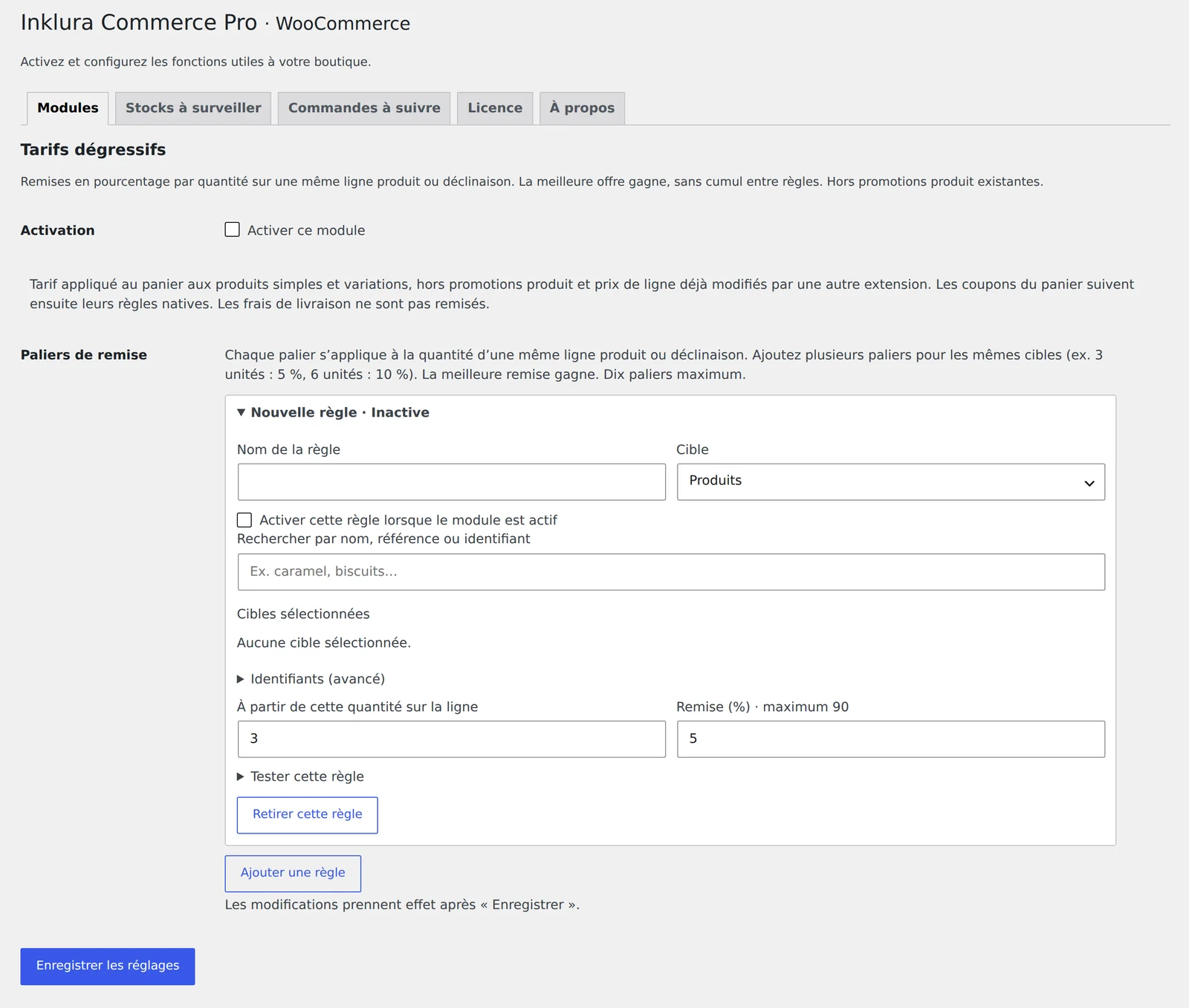
A percentage discount applies in the cart when the quantity of a single product or variation line reaches a tier. For example, 5% from 3 units and 10% from 6: create two rules on the same products. The best discount wins, with no stacking between rules.
- Under Paliers de remise (discount tiers), click Ajouter une règle (add a rule) and name it.
- Choose the Cible (target: Produits or Catégories) and search targets by name, reference or ID.
- Enter À partir de cette quantité sur la ligne (starting quantity, at least 2) and the Remise (%), 90% at most.
- Open Tester cette règle (test this rule) to check the resulting price: the test creates no order.
- Tick Activer cette règle lorsque le module est actif, save, then enable the module. Ten rules at most.
Products already on sale are not discounted, and neither is shipping. On PrestaShop, specific prices, group reductions, customised products and products with ecotax are also excluded; on WooCommerce, a line whose price was already changed by another extension is left as is. Coupon codes keep their own conditions.
9Cart rules
- Minimum de commande (minimum order, Starter): Montant minimum HT, the minimum product amount excluding tax, before cart discounts and without shipping, in the shop's base currency (PrestaShop converts it to the cart currency). Below this amount, customers see what is missing and cannot place the order.
- Quantités du panier (cart quantities, Starter): Nombre minimum d'articles (minimum items), Nombre maximum (0 = no limit) and Commander par multiples de (order in multiples of), counted across the whole cart, all lines and variations together.
- Règles ciblées (targeted rules, Premium): the same limits, plus a Minimum HT, applied only to the chosen products or categories. Active rules add up. As with quantity discounts, each rule can be tested before saving.
These rules cover WooCommerce's classic and block-based carts and PrestaShop's native checkout. Place a test order after each change.
10Stock and order follow-up
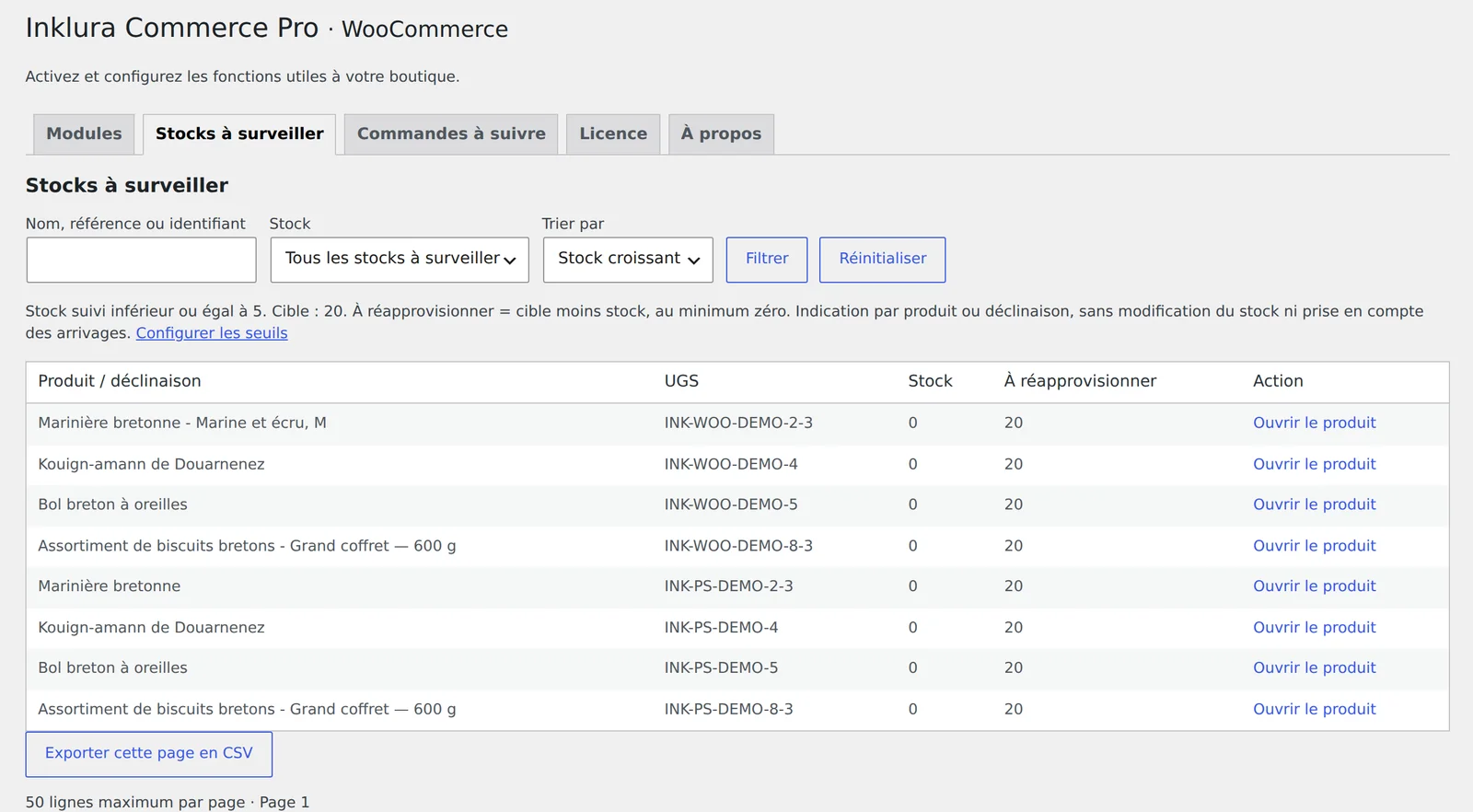
Two read-only reports, in the tabs of the same name. They show 50 rows per page and link to the native record for any change.
- Stocks à surveiller (stock to watch, Starter): products and variations whose tracked stock is at or below the Seuil du tableau de surveillance (report threshold, 5 by default). The À réapprovisionner column gives the gap to the Stock cible (target stock, 20 by default), ignoring incoming deliveries. Search by name, reference or ID; out-of-stock filter.
- Commandes à suivre (orders to follow up, Starter): orders created at least Ancienneté minimum (heures) ago, 24 hours by default, in the Statuts à surveiller you choose.
- Exports CSV (Premium): adds Exporter cette page en CSV below both reports. The export covers the displayed page with its filters, without customer personal data.
11The product workspace
Several tools are used straight from the shop's product pages, in a panel reserved for staff. Each tool is a separate module; the panel only shows the tabs of enabled modules.
| Tab | Use |
|---|---|
| Stock | Add or remove units; prepare several rows; enter counted quantities Modules: Stock on product pages; variation grid and physical stocktake (Premium) |
| Historique | Movement log, reason and author, reversal of an adjustment Modules: Stock history and reasons |
| Prix | Regular price, sale price, sale start and end Modules: Prices on product pages |
| Synchronisation | Compare the product with the Inklura Sync partner shop Modules: Sync on product pages |
| Qualité | Image, description, duplicate references, weights, incomplete variations Modules: Product quality, essential (free) and advanced (Premium) |
| Réapprovisionnement | Units to plan and expected deliveries Modules: Replenishment forecast (Premium) |
Launch staff mode
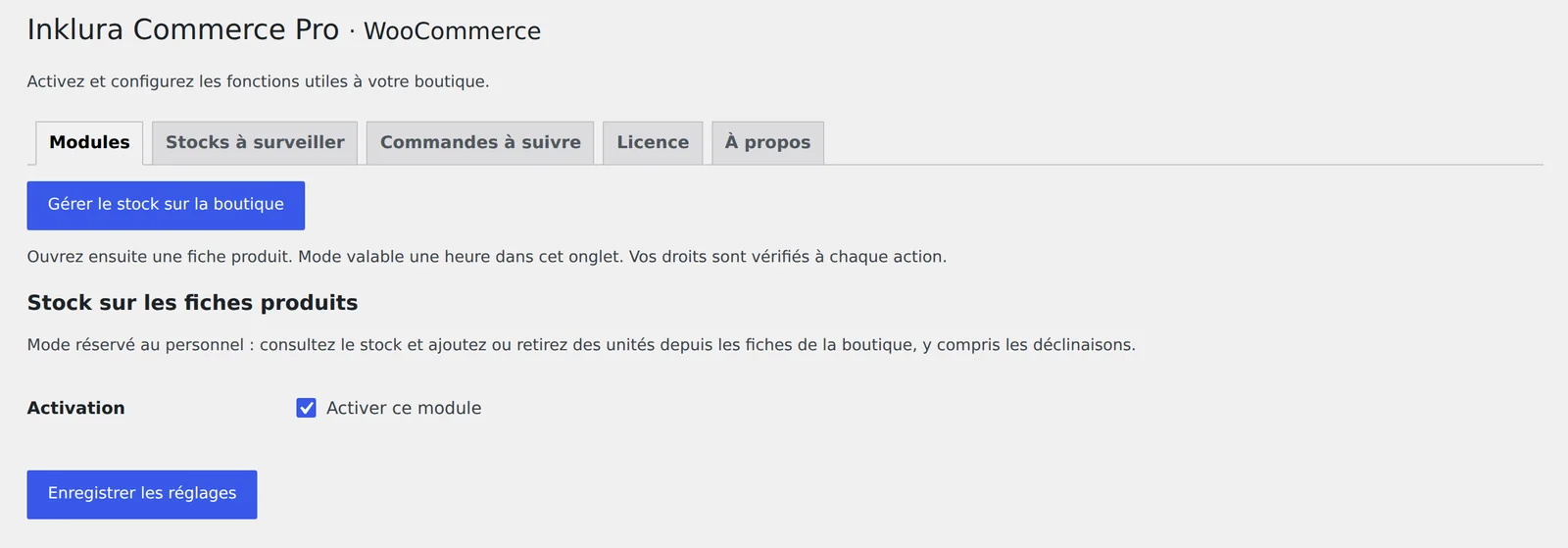
- Enable at least one of these modules, then open its settings (Configurer).
- Click Gérer le stock sur la boutique (manage stock on the shop). The shop opens in the same tab.
- Open a product page: the Commerce Pro · Personnel panel appears. Pick the product or variation under Produit / déclinaison.
The mode lasts one hour in that browser tab; Quitter le mode personnel (leave staff mode) removes it. Customers never see the panel. Every action checks your native permissions: shop management and product editing on WooCommerce; module configuration and catalogue editing on PrestaShop, within a single selected shop.
Stock, history and stocktake
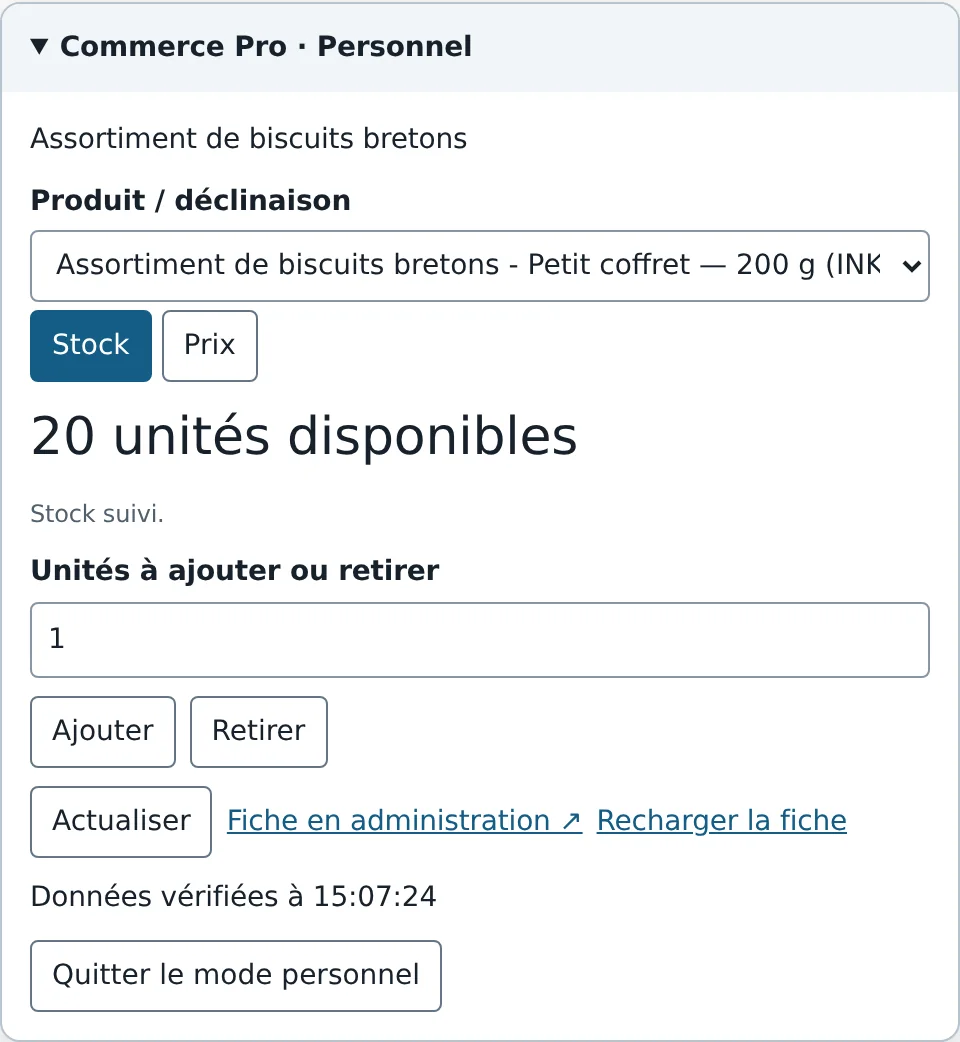
Enter a whole number of units, click Ajouter or Retirer, then confirm. Stock must be tracked in the native product record; one adjustment is limited to 10,000 units and cannot make stock negative. On WooCommerce, stock shared with the parent product is flagged. On PrestaShop, packs and warehouse stock remain managed in the native admin.
With Historique et motifs de stock, each adjustment carries a reason (supplier delivery, correction, breakage or loss, return…) and its author. The history also records native stock movements from the moment the module is enabled. Annuler ce mouvement (reverse this movement) creates an opposite movement: sales made since are kept.
In Premium, Préparer plusieurs lignes (prepare several rows) adjusts several variations at once, and the Inventaire (quantités comptées) entry type turns your counts into differences. A summary always comes before saving, and the result is given row by row: a row whose stock changed in the meantime is rejected without blocking the others.
If the connection drops while saving, click Actualiser (refresh) before trying again: the action may have gone through. The panel does not update by itself, and the customer-facing page refreshes with Recharger la fiche (reload page).
Prices and sales
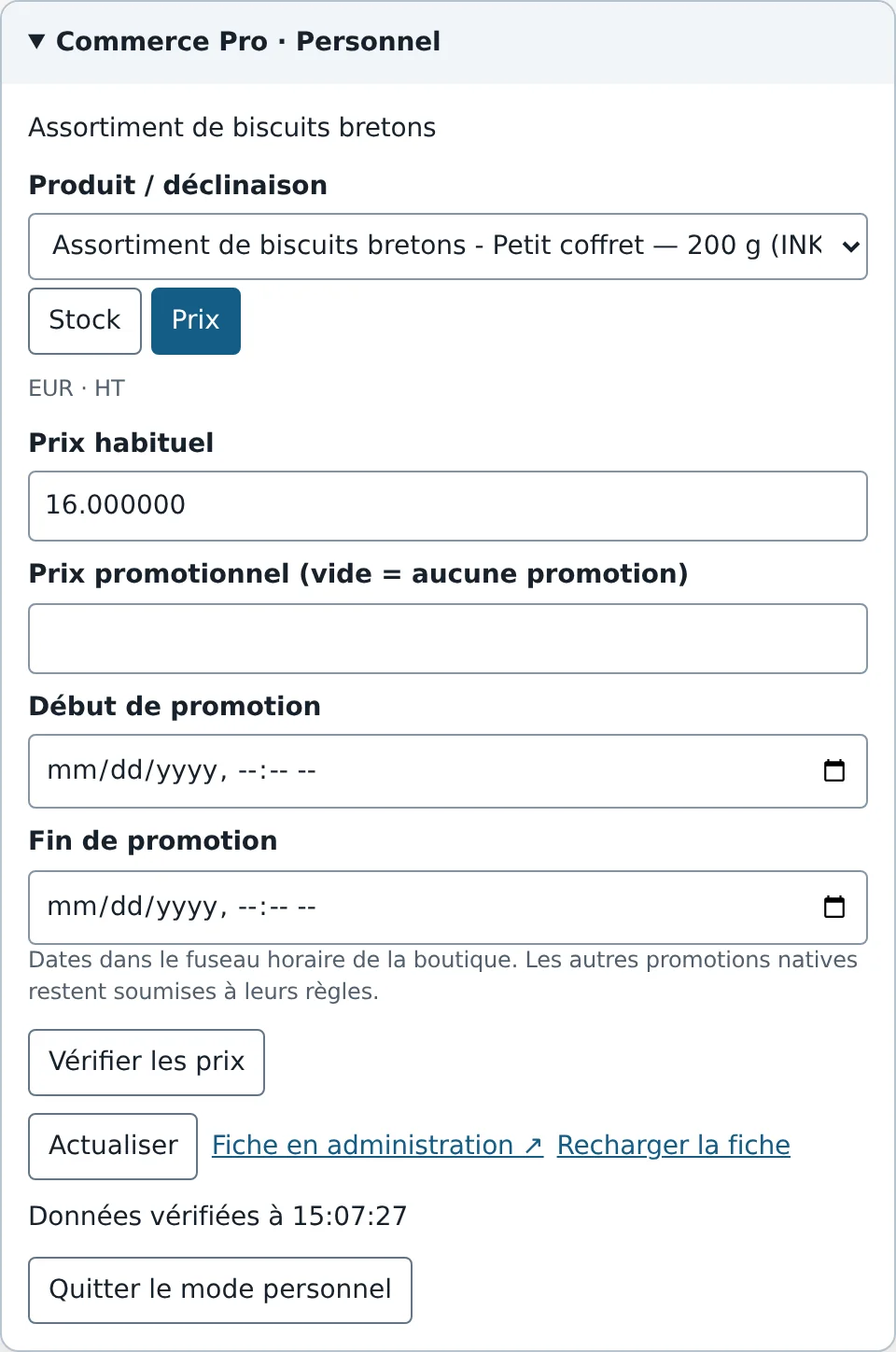
On WooCommerce, the tab edits the native regular price, sale price and sale dates; for a variable product, those of the selected variation. On PrestaShop, it edits the price excluding tax in the base currency and a promotion owned by Commerce Pro; your other specific prices are kept. Dates follow the shop's timezone. Vérifier les prix shows the change before you confirm. Orders already placed do not change.
Sync with Inklura Sync
If your two shops are connected by Inklura Sync (version 0.6.3 or later on both sides), the Synchronisation tab compares the product on Cette boutique (this shop) and on the Partenaire (partner) shop: stock per variation, last event and pending events, links to both records.
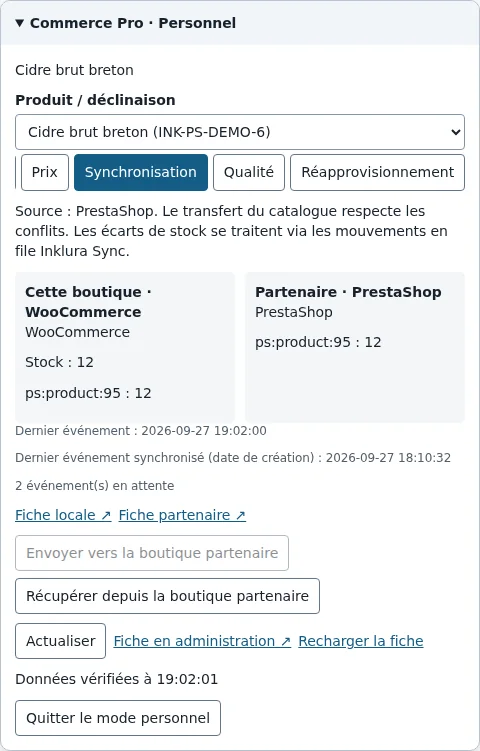
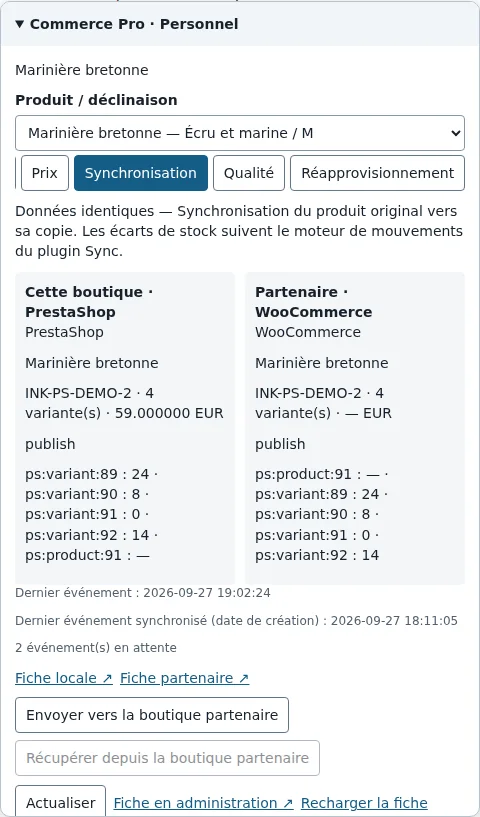
Catalogue transfers always follow the original-to-copy direction: the original can Envoyer vers la boutique partenaire, the copy can Récupérer depuis la boutique partenaire. Sync's conflict protection stays active. Stock differences go through Inklura Sync's movement queue: this button does not force stock levels to match. For a conflict or a stuck event, use the Inklura Sync admin.
Quality and replenishment
The Qualité tab flags a missing image or description (free) and, in Premium, duplicate references, missing weights and incomplete variations, with a link to the native record to fix them. The Réapprovisionnement tab (Premium) estimates the units to plan from recent sales, supplier lead time, desired coverage and safety stock, all set in the module. Enter the Unités attendues du fournisseur (units expected from the supplier), then Enregistrer les arrivages (save incoming stock): this does not change sellable stock, so reduce these quantities on receipt. It is an estimate, not a purchase order.
12Back-in-stock alerts
Premium module. On an out-of-stock product or variation, customers leave their address in the Alerte de retour en stock block and click Me prévenir (notify me). They receive a confirmation email: the sign-up only counts after they click Confirmer mon inscription (confirm). The same email lets them cancel.
When physical stock returns, a scheduled task sends one alert per sign-up, after checking stock and product publication. Allowed backorders do not count as a return to stock. The address is deleted after sending, cancellation or expiry.
- Expiration des demandes (jours) (request expiry): 90 days by default, 1 to 365.
- Envois maximum par traitement (maximum sends per run): 20 by default, 50 at most.
Alerts use the native mail system (wp_mail on WordPress, the module's French and English email templates on PrestaShop). Check that the shop sends email correctly and that the scheduled task runs (step 14) before enabling the module. No alert is sent while the module is disabled or Premium is no longer active.
13Command line
Both editions offer the same commands, with JSON output: status, modules, settings, licence, alert queue and product tools. Run them as the shop's system user.
Every write needs --yes and an explicit staff account (--user on WordPress, --employee on PrestaShop) with the usual permissions. --dry-run previews enabling a module, a settings change, a bulk adjustment or a stocktake. The licence key is never entered on the command line. The full reference is docs/cli.md, included in each archive.
14Updates and scheduled tasks
WooCommerce: new versions appear under Plugins, with one-click update. Licence checks and alert sending run through WP-Cron every hour: on a low-traffic shop, hand WP-Cron to a system task.
PrestaShop: download the new archive, then upload it with Upload a module. PrestaShop runs the upgrade scripts and keeps the settings. Then install these two hourly tasks, with the shop's user and PHP version:
If a scheduler already triggers PrestaShop's actionCronJob hook, it can replace them. Without the first task, the licence is no longer renewed automatically: the entitlement expires after 14 days unless you click Vérifier maintenant.
An update never enables a new module.
15Troubleshooting
Licence messages appear in the Licence tab; workspace messages, in the panel.
| Message | What to do |
|---|---|
| Clé inconnue ou non utilisable. | Unknown or unusable key. It matches no Commerce Pro or Inklura Sync licence. Copy it again from your customer area with the copy button. |
| Toutes les boutiques de cette licence sont utilisées. | All shops on this licence are in use. A standalone licence covers one shop. Release the old shop in your customer area (Release shop), then click Activer la clé. |
| Activez cette boutique dans Commerce Pro pour utiliser cette licence. | The shop was released from the customer area. Click Activer la clé to activate it again, if the licence has a free slot. |
| Activez d’abord cette boutique dans Inklura Sync Pro. | Included Starter: the same shop (same address, same platform) must be activated in Inklura Sync with this key. Finish the Sync installation, then click Vérifier maintenant. |
| Starter est inclus dans Inklura Sync Pro, ou disponible séparément. | The key is a Sync Essentiel or Agence licence: they do not include Starter. Buy a Commerce Pro licence or move to Sync Pro. |
| Licence expirée. Mode gratuit actif. | Licence expired, free mode active. Renew from your customer area, then click Vérifier maintenant. Settings are kept; paid modules resume as they were. |
| Serveur de licence momentanément indisponible. | Licence server temporarily unavailable. Try again later and check that the server can reach plugins.inklura.fr over HTTPS. The saved entitlement stays valid until its date. |
| Formulaire expiré. Rechargez la page. | The admin page stayed open too long. Reload it and try again. |
| Mode expiré. Relancez-le depuis Commerce Pro. | Staff mode lasts one hour in the tab where it was launched. Click Gérer le stock sur la boutique again. |
| Action indisponible. Actualisez les données avant de réessayer. | Stock or price changed since the panel was displayed (a sale, another team member). Click Actualiser, check the values, then try again. |
- A badge or message does not appear: the theme may not use the native location. Check with a default theme, then tell us which theme is involved.
- The panel does not appear on the product page: staff mode expired or was launched in another tab, or no workspace module is enabled.
- No back-in-stock alert: check the scheduled task, the shop's email sending and that the customer actually confirmed the sign-up.
For help, write to contact@inklura.fr with the platform, version, module and step involved. Leave out keys and passwords.
16Disable or uninstall
To stop one feature, simply disable its module: its settings are kept. To stop the extension:
- WooCommerce: deactivate then delete the plugin from Plugins. Deleting it erases back-in-stock sign-ups and their scheduled task; module settings stay saved.
- PrestaShop: in the Module Manager, uninstall Inklura Commerce Pro. Uninstalling also erases alert sign-ups. Then remove the two cron tasks.
To use your licence on another shop, first click Release shop in your customer area (or Retirer la clé, remove key, in the Licence tab), then activate the key on the new shop.